

Booking setup
BalieBookings
Two things decide what visitors can book:
- Resources: who or what serves a booking. A person, a room, a vehicle or a set of seats, each with its own opening hours.
- Services: what people book, such as “Haircut, 30 minutes” or “Coffee tasting for groups”. A service is served by one or more resources.
Set up at least one resource, then a service.
Resources
Section titled “Resources”- Open Bookings, choose Resources, then New resource.
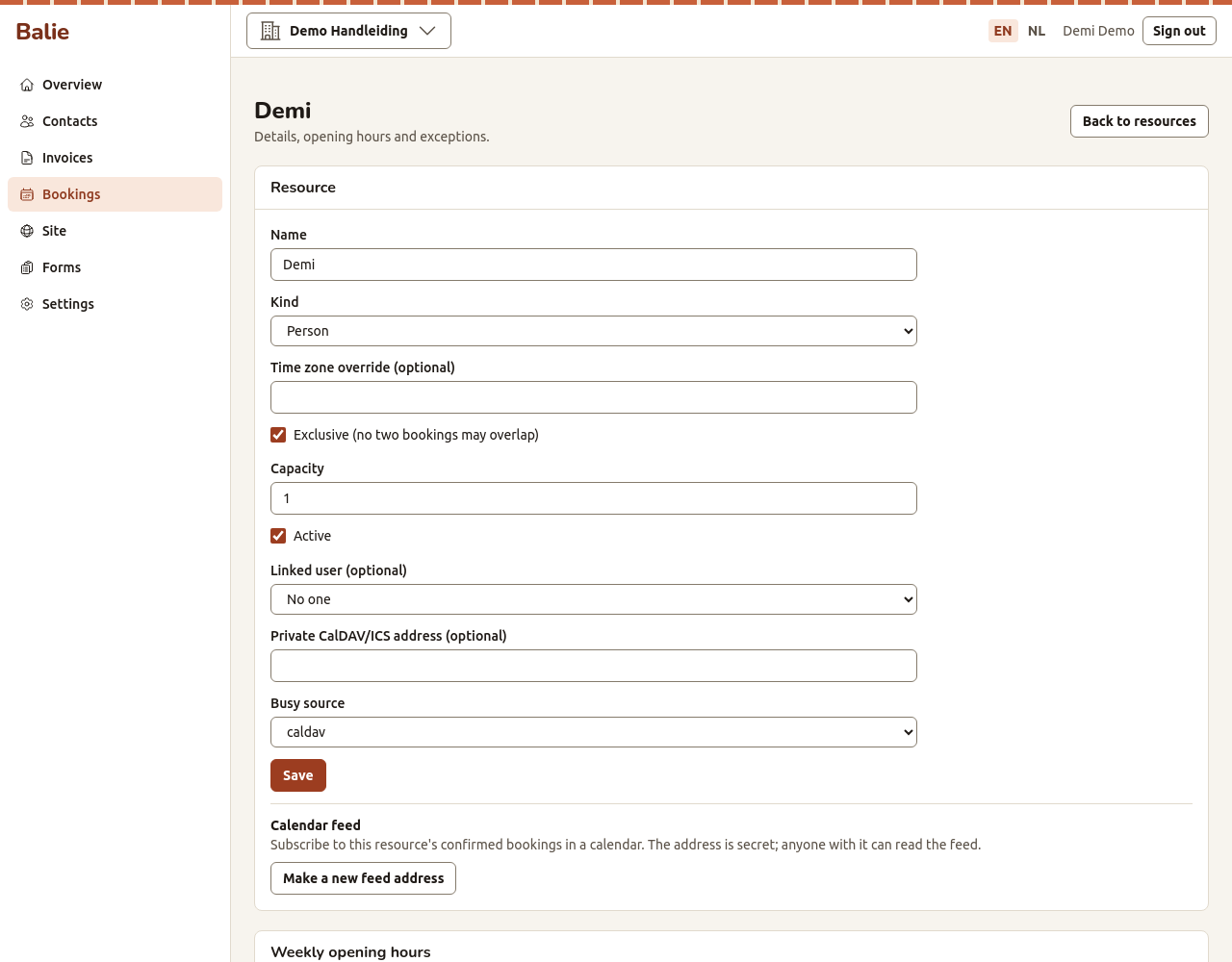
- Fill in:
- Name, for example “Ana” or “Tasting room”;
- Kind: Person, Room, Vehicle or Seats;
- Time zone override (optional): only when this resource works in another time zone than your organisation;
- Exclusive (no two bookings may overlap): tick it for a person or a room that can serve one booking at a time. Leave it unticked for seats in a class;
- Capacity: how many people fit, for seats;
- Active: untick it to stop taking bookings for this resource;
- Linked user (optional): the person in your organisation this resource is. Needed for the Kantoor calendar, below;
- Private CalDAV/ICS address (optional): the address of a private calendar
of this person. Balie reads only the busy times from it (never what the
appointments are), so visitors cannot book when the person is busy elsewhere.
Under Busy source, choose
icsfor a calendar address that ends in.icsandcaldavfor a CalDAV calendar;
- Choose Save.
Opening hours
Section titled “Opening hours”A resource without opening hours is closed. Under Weekly opening hours:
- Choose the Day, the time it Opens and the time it Closes.
- Choose Add.
Add a line per day. For a lunch break, add two lines for the same day (for example 09:00 to 12:00 and 13:00 to 17:00). Remove deletes a line.
Holidays and exceptions
Section titled “Holidays and exceptions”Under Exceptions and holidays, add a period when the resource is not available. All three kinds close the resource for that period; the kind is only a label for you:
- Choose the Kind: Holiday, Blocked or Exception.
- Choose when it Starts and Ends, and optionally a Reason.
- Choose Add.
Calendar feed
Section titled “Calendar feed”Under Calendar feed you get a secret address with the confirmed bookings of this resource. Add it to a calendar app (Google Calendar, Apple Calendar, Outlook, Thunderbird) as a subscribed calendar, so you see your bookings there.
- Make a new feed address makes a new address. The old one stops working for everyone who used it. Do this when the address got into the wrong hands.
Anyone with the address can read the bookings, so keep it to yourself.
Kantoor calendar
Section titled “Kantoor calendar”When the resource is linked to a person who also uses Kantoor, their Kantoor calendar can follow the bookings by itself:
- Link the resource to the person (Linked user) and save.
- Under Kantoor calendar, choose Follow in Kantoor. Balie asks to confirm, because this makes a new feed address.
The bookings then appear in that person’s Kantoor calendar, and in the calendar apps connected to Kantoor. Stop following in Kantoor undoes it.
Services
Section titled “Services”- Open Bookings, choose Services, then New service.
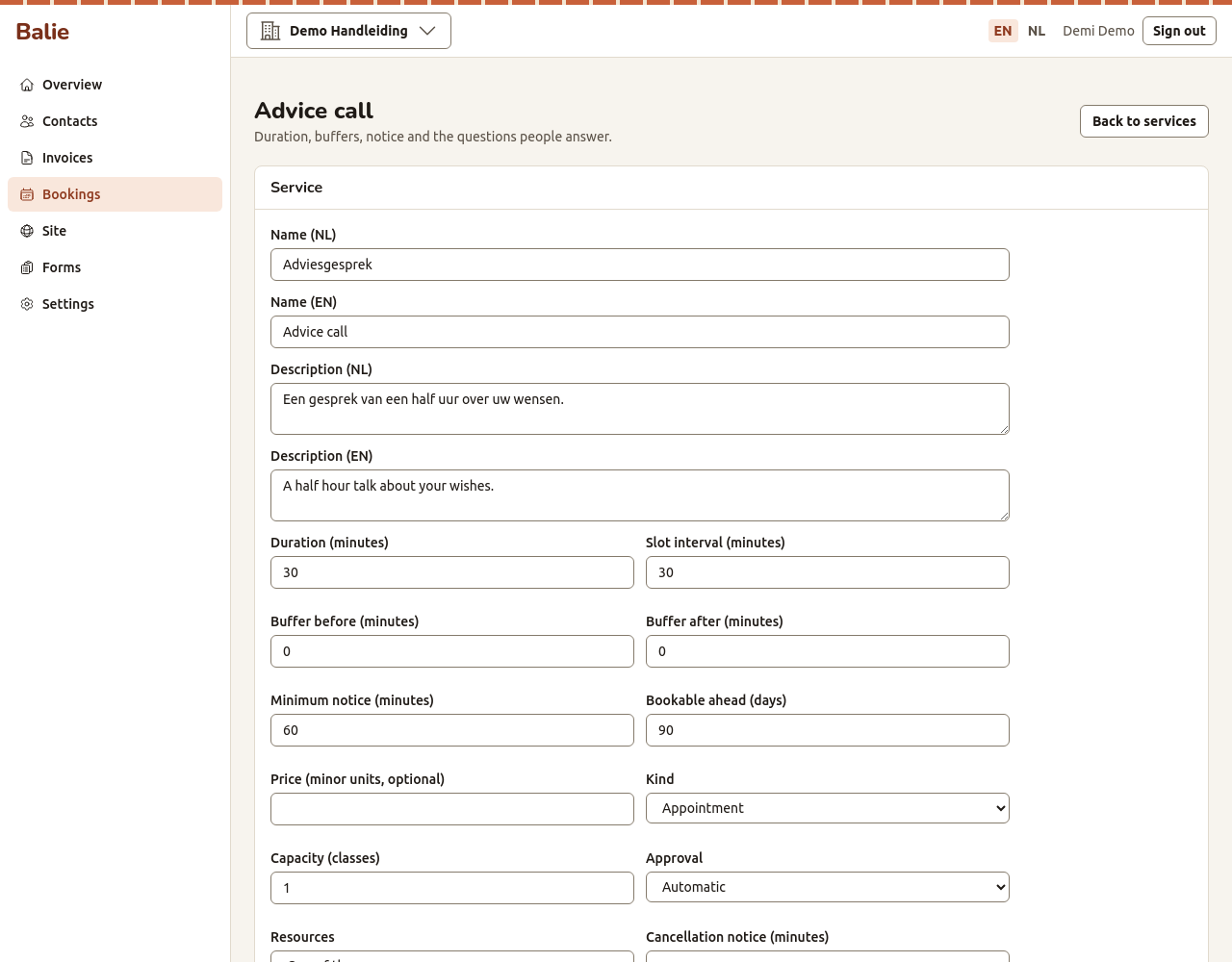
- Fill in:
| Field | What it does |
|---|---|
| Name, Description | What visitors see, per language. |
| Kind | Appointment (one person, one time slot), Class (several people at the same time, up to a capacity) or Rental (whole days). |
| Duration (minutes) | How long it takes. |
| Slot interval (minutes) | How far apart the start times are, for example every 15 or 30 minutes. |
| Buffer before (minutes), Buffer after (minutes) | Free time kept before and after, for preparing or cleaning up. |
| Minimum notice (minutes) | How long before the start people can still book. 120 means: not later than two hours before. |
| Bookable ahead (days) | How far into the future people can book. |
| Price (minor units, optional) | The price in cents: 2500 is 25.00. Shown to visitors; Balie does not charge it. |
| Capacity (classes) | How many places a class has. |
| Approval | Automatic: a booking is confirmed at once. Manual: it is a request until you approve it. |
| Resources | One of them (any free resource serves it) or All of them (all must be free, for example a person and a room). |
| Cancellation notice (minutes), Reschedule notice (minutes) | Until how long before the start people can cancel or move the booking themselves. |
| Reminders before the booking (minutes, comma separated) | When reminder mails go out, for example 1440, 120 for a day and two hours before. |
| Active | Untick it to stop offering the service. |
| Resources that may serve this service | Tick the resources. |
- Choose Save.
Intake questions
Section titled “Intake questions”Under Intake questions you add what you need to know before the appointment, for example “Hair length” or “Allergies”. They work like the fields of a form: choose a type, give a Key and a Label, and choose Save question. Visitors answer them when they book; you see the answers on the booking.
Show the booking page on your website
Section titled “Show the booking page on your website”Visitors book at /book on your site, for example
kralendijk-koffie.boneiru.online/book. To add a button on a page, add a
Booking calendar section to it: see Your website.