

Contacts
BalieContacts
Contacts is one list of the people and companies you deal with: customers, suppliers, guests. Invoices and bookings always point to a contact.
A contact arrives in the list in three ways:
- you add it yourself;
- someone fills in a form on your website or books online (Balie matches them by e-mail address, so the same person is not added twice);
- another program adds it through an API key.
Find a contact
Section titled “Find a contact”- Open Contacts.
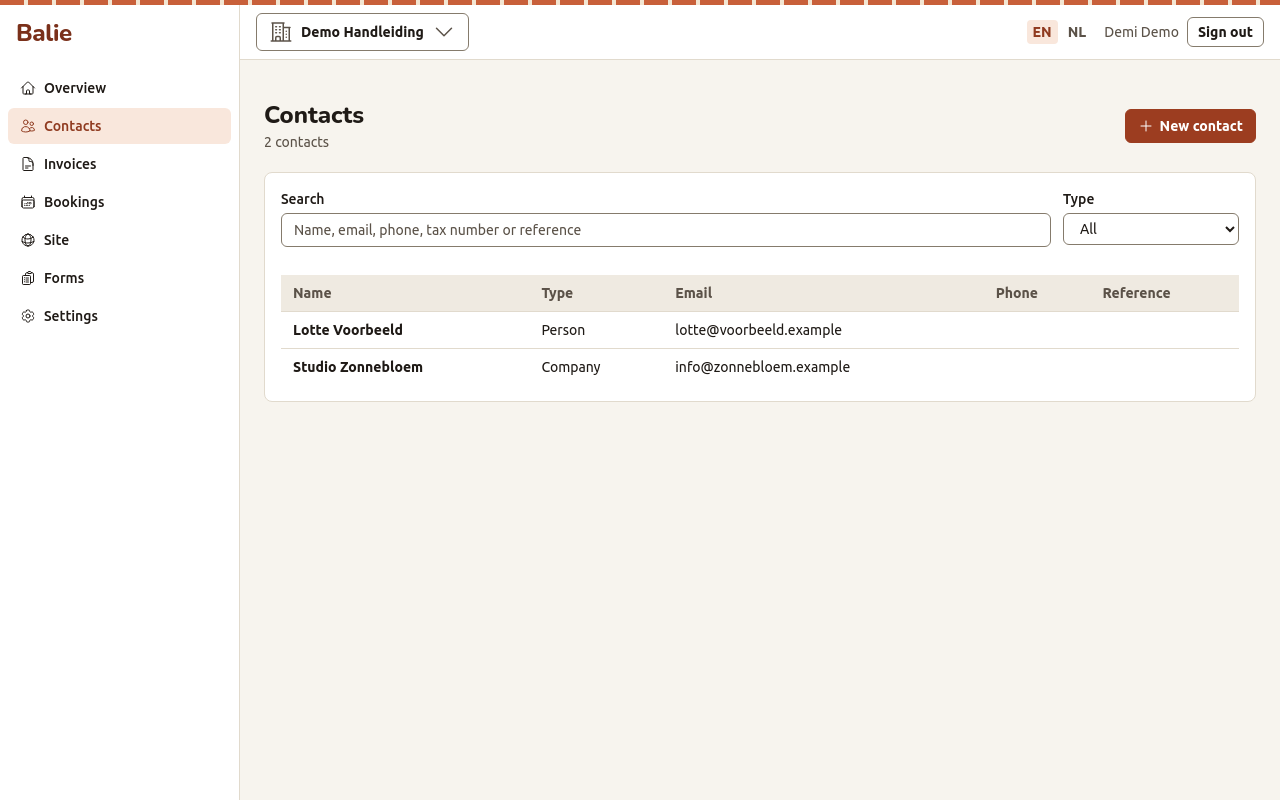
- Type in Search: a name, e-mail address, phone number, tax number or reference.
- To see only people or only companies, choose Person or Company under Type (All shows both).
The list shows 25 contacts per page. Use Previous and Next to move between pages.
Add a contact
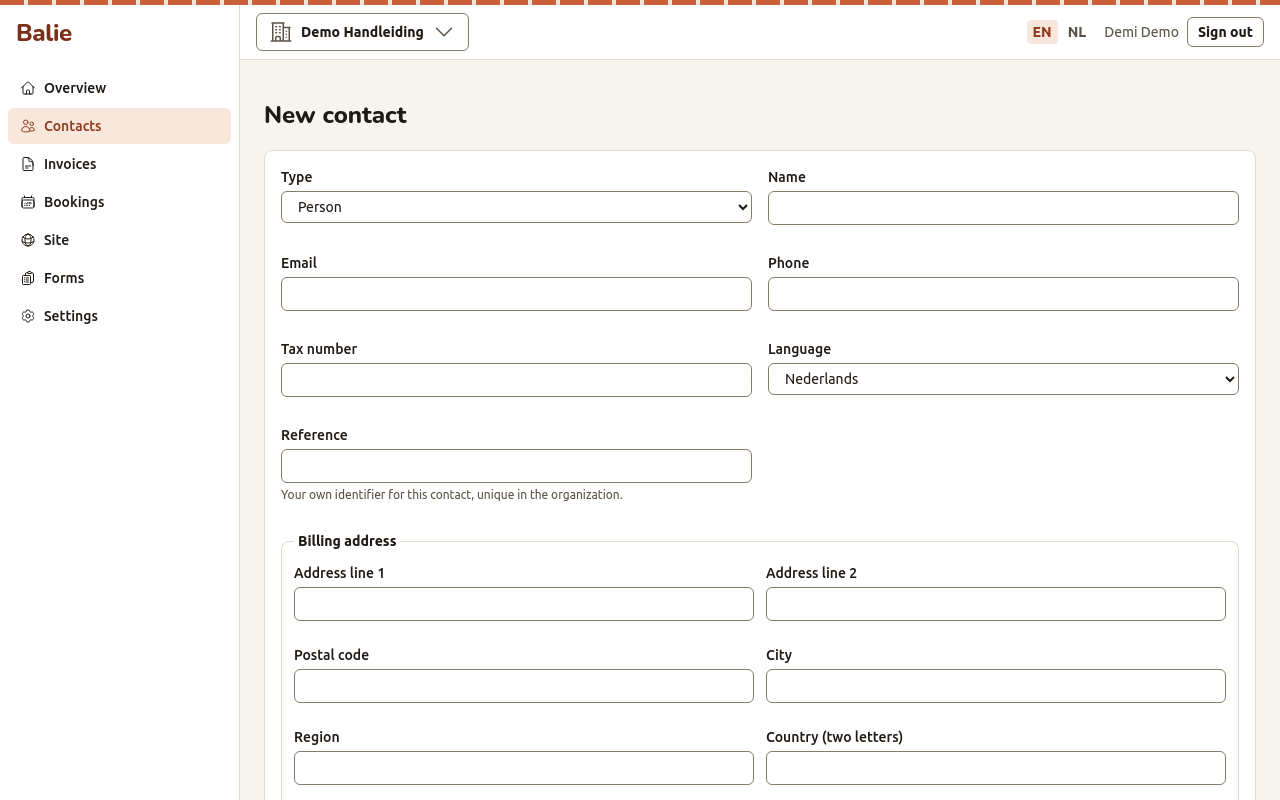
Section titled “Add a contact”- Open Contacts and choose New contact.
- Choose Person or Company and fill in the Name.
- Fill in what you know. All other fields are optional:
- Email and Phone;
- Tax number (printed on invoices to this contact);
- Language: Nederlands or English. Invoices, quotes and credit notes for this contact are written in this language;
- Reference: your own identifier for this contact, for example a customer number. It must be unique in the organisation;
- Billing address and Shipping address: address lines, postal code,
city, region and Country (two letters), for example
BQfor Bonaire orNLfor the Netherlands; - Notes: anything you want to remember. Only people in your organisation see the notes.
- Choose Save.
Change or delete a contact
Section titled “Change or delete a contact”- Open the contact from the list.
- Choose Edit to change it, then Save.
- Choose Delete to remove it. Balie asks you to confirm.
A contact that is on an invoice, quote or credit note cannot be deleted: Balie says This contact is on a document and cannot be deleted. Documents must stay complete for your bookkeeping.
On the contact page, Invoices opens the documents of this contact.
Who can change contacts
Section titled “Who can change contacts”Owners, editors, bookkeepers and staff can add and change contacts. See Roles and permissions.