

What your visitors and customers see
BaliePublic pages
Visitors never sign in. They see your website, your forms and your booking page, and your customers open the invoices and quotes you send them through a private link. These pages work in every browser, also on a phone, and need no app.
Your website
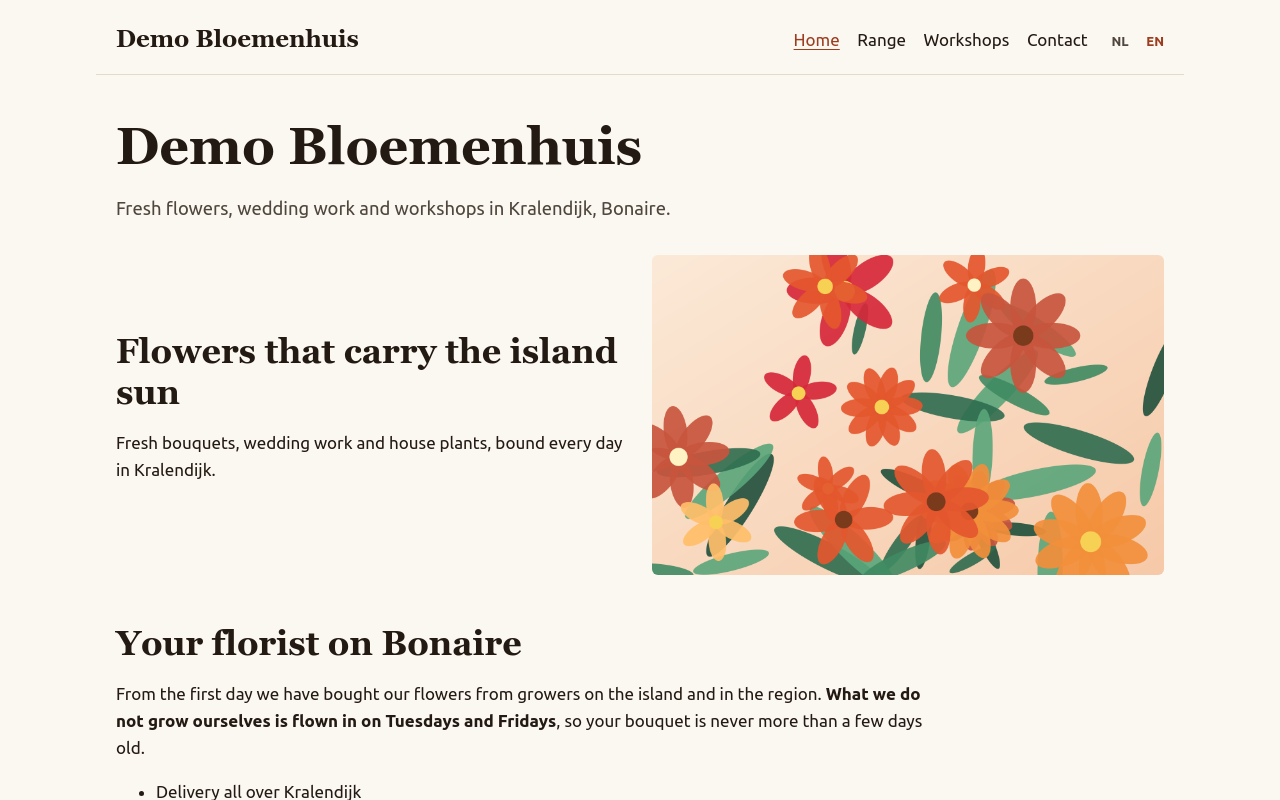
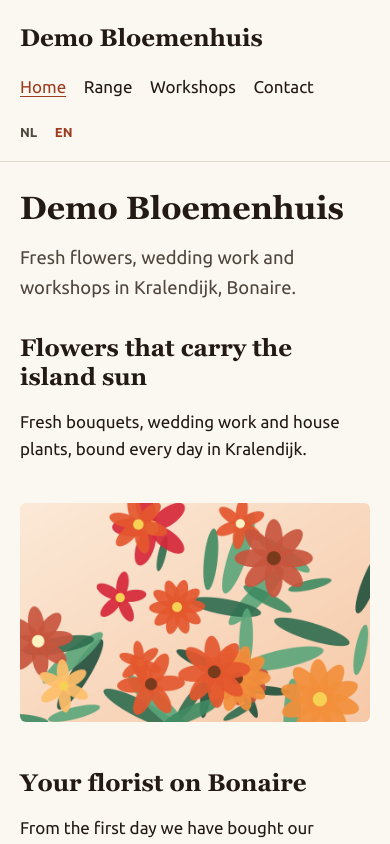
Section titled “Your website”Your site is at your-name.boneiru.online, or at your own domain. It has your
pages in the order of your menu, your theme, your logo and your footer. With more
than one language, the language switch (for example NL and EN) is at the
top. On a phone the menu is shown above the page.
An address that does not exist on your site shows Page not found with a link Back to the start.
A form
Section titled “A form”A visitor fills in the form and chooses Send. Required fields are marked; a missing or wrong answer is shown next to the field. A file upload accepts a PDF, PNG or JPEG file. After sending, the visitor sees your confirmation message.
Booking online
Section titled “Booking online”The booking page is at /book on your site. It is shown in the default language of
your site (see Site settings).
- Book an appointment lists your services with their duration. The visitor chooses one.
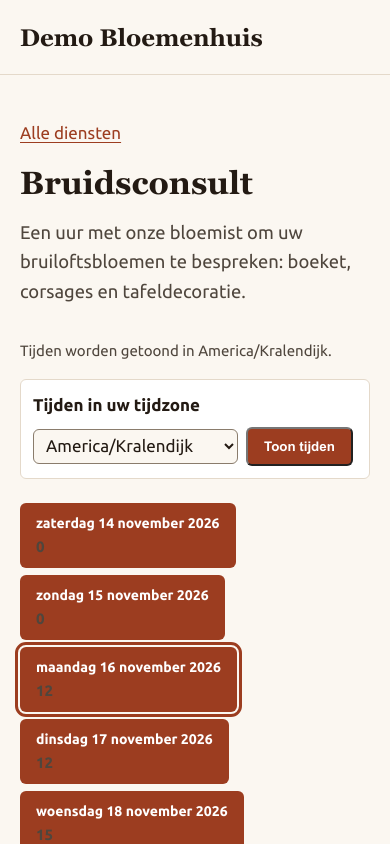
- Choose a day, then the free times of that day. The times are shown in the time zone of your site; under Times in your time zone a visitor from elsewhere can choose their own zone and choose Show times.
- Under Your details the visitor fills in Your name, Email address, Phone (optional), for a class the Number of places, Notes (optional) and your intake questions, and chooses Confirm booking.
- The page confirms the booking, or says that it waits for approval. An e-mail follows with the details and a calendar invitation.
Moving or cancelling
Section titled “Moving or cancelling”Every booking mail has a private link. It opens Your booking with its Status and two buttons:
- Reschedule: Choose a new time and confirm;
- Cancel booking.
Both work until the notice period of the service (see Booking setup). After that, the visitor must contact you.
A document you sent
Section titled “A document you sent”The link in the mail of an invoice, quote or credit note opens the document in the browser, with your details, the lines, the totals, the payment details and its state: Open, Partly paid, Paid, Overdue or Credited for an invoice, Expired or Accepted for a quote. The customer can download the PDF from there.
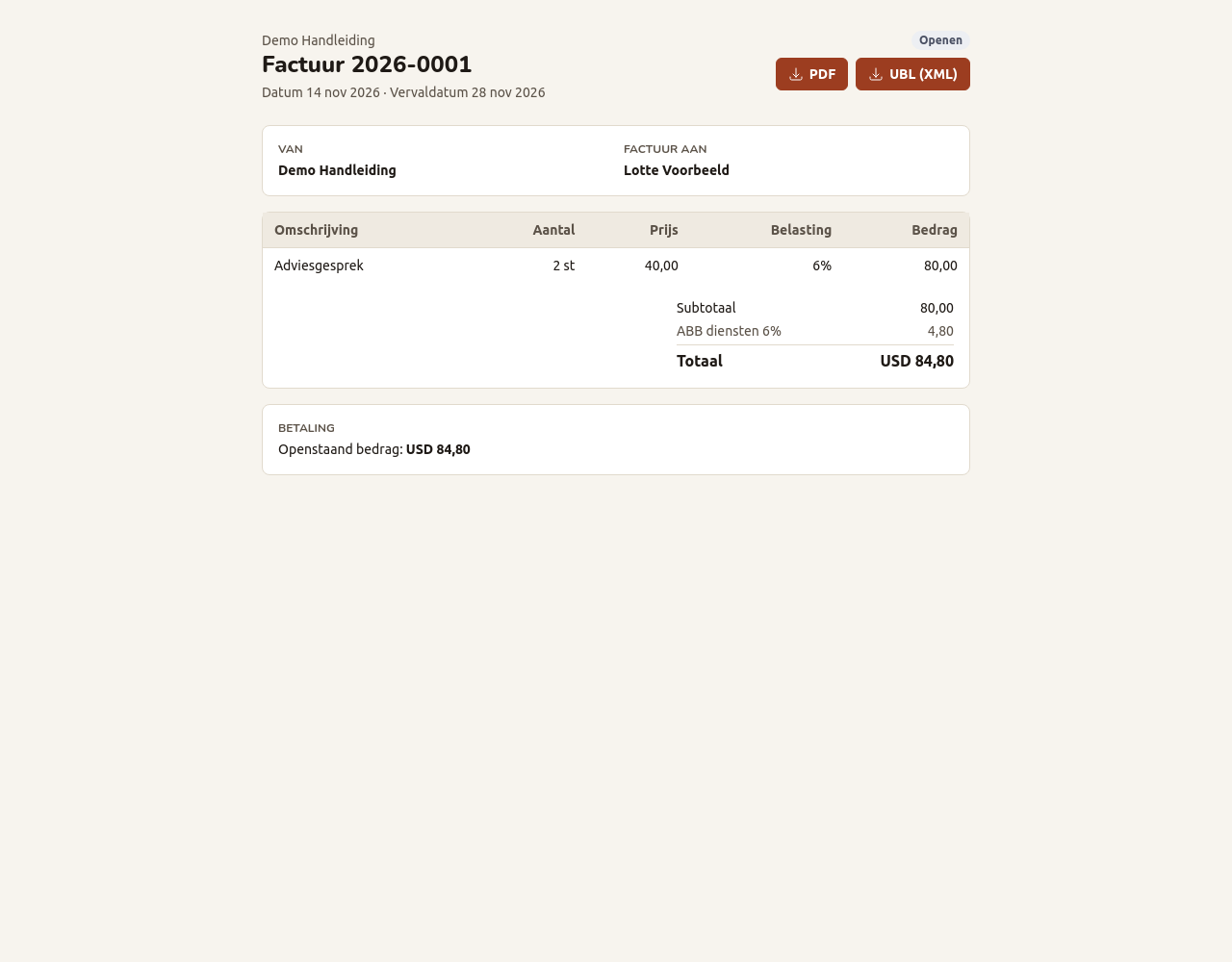
When you use online payments, an open invoice shows a Pay button for the open amount. The customer pays at the payment provider and comes back to a page that says Thank you, your payment was received, or that the payment is still being checked. In test mode the page says Test mode: no real money is moved.
A link stops working after a year. The page then says This link has expired: send the document again.