

Invoices, quotes and credit notes
BalieInvoices
Under Invoices you write three kinds of document:
- a quote: what you offer, with a date until which it is valid;
- an invoice: what a customer must pay, with a due date;
- a credit note: a correction of an invoice, in full or in part.
Before you write your first invoice, set up your invoicing settings and tax rates: your company details, your bank account and the tax rates you use are printed on every document.
How a document lives
Section titled “How a document lives”- A document starts as a Draft. You can change or delete a draft as often as you like. It has no number yet.
- Issue gives it the next number and freezes it. From then on nobody can change or delete it. This keeps your bookkeeping complete: numbers have no gaps, and what the customer received is what Balie keeps.
- An issued invoice is Open until it is paid. It becomes Partly paid, Paid, Overdue (past the due date with something still to pay) or Credited (a credit note covers it).
A mistake in an issued invoice is corrected with a credit note, never by changing the invoice.
Find documents
Section titled “Find documents”- Open Invoices.
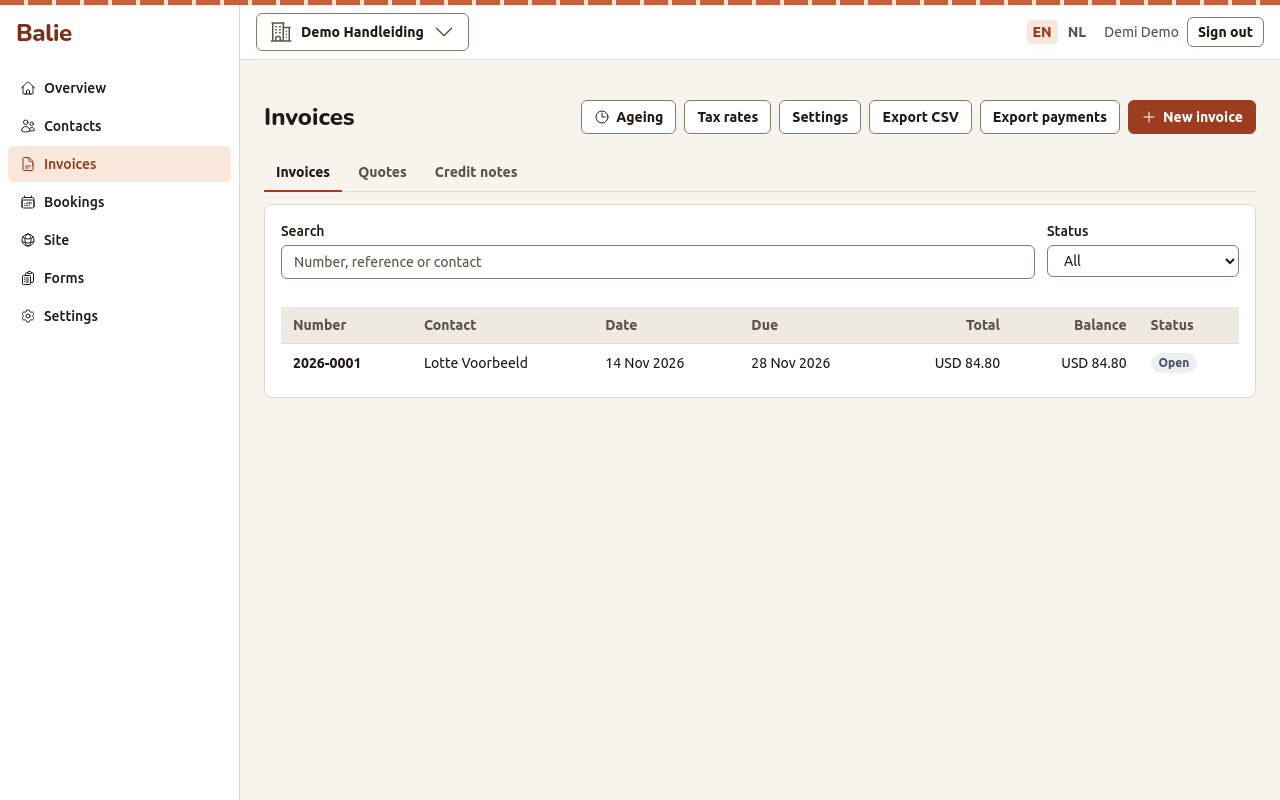
- Choose the tab Invoices, Quotes or Credit notes.
- Use the filters:
- Search: a number, a reference or a contact;
- Status: All, Draft, Open, Partly paid, Paid, Overdue or Credited.
The list shows the Number, Contact, Date, Due date, Total and Balance (what is still to pay). It shows 25 documents per page.
Write an invoice
Section titled “Write an invoice”- Open Invoices and choose New invoice.
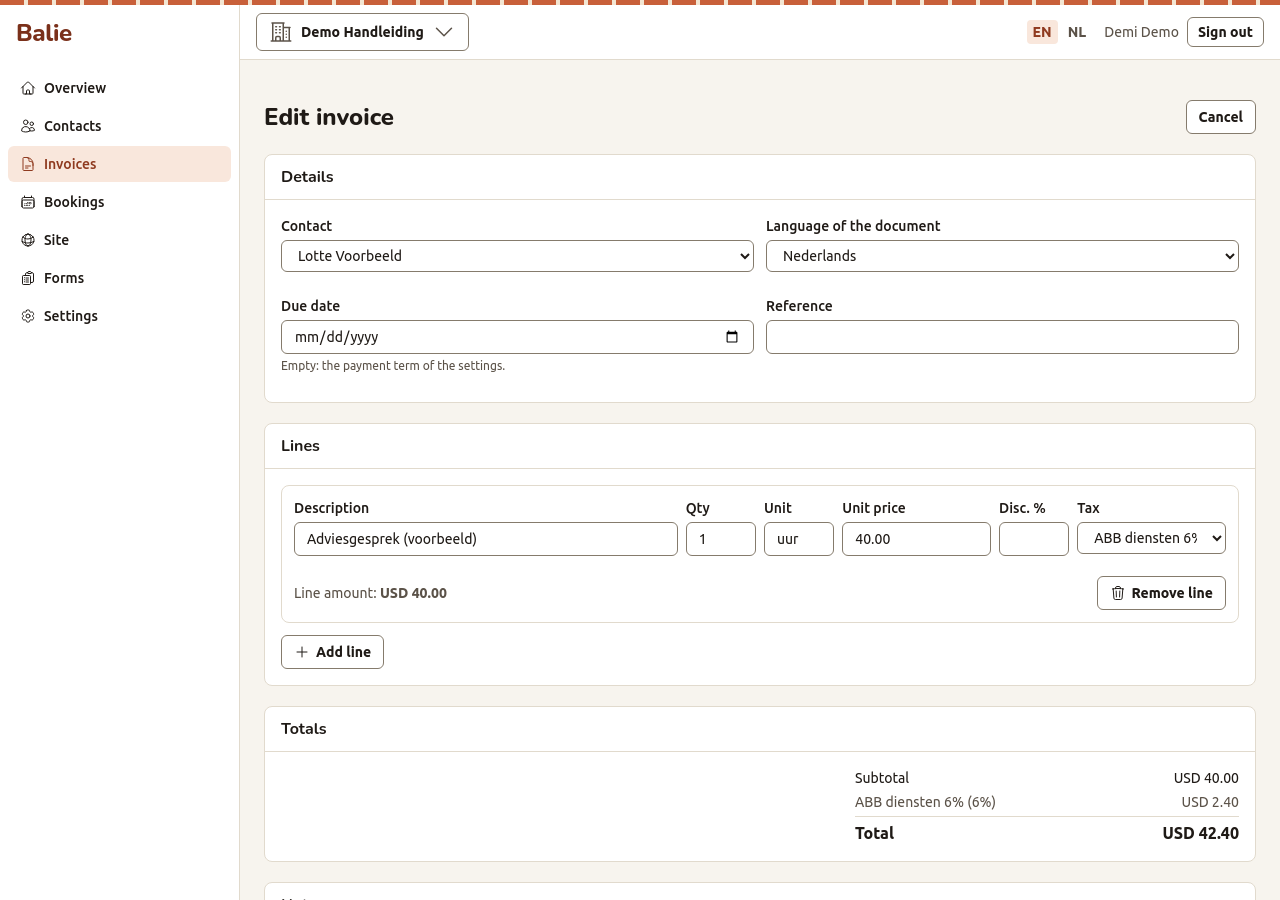
- Under Details:
- Contact: choose who the invoice is for. Add the contact first under Contacts if it is not there.
- Language of the document: the language of the PDF. It starts as the contact’s language.
- Due date: leave it empty to use the payment term of your settings.
- Reference: for example the customer’s order number.
- Under Lines, fill in one line per product or service: Description, Qty (quantity), Unit (for example “hours”), Unit price, Disc. % (discount, optional) and Tax (the tax rate). Add line adds a line; Remove line removes one. The Totals are worked out as you type.
- Optionally write Notes (printed on the document) and Terms.
- Choose Save draft.
If the editor says There are no tax rates yet., add them first: see Tax rates.
Issue an invoice
Section titled “Issue an invoice”- Open the draft.
- Check it, then choose Issue. Balie asks: Issue this document? It gets its number and can no longer be changed. Confirm.
Balie refuses to issue when something is missing and says what:
| Message | What to do |
|---|---|
| Choose a contact before issuing. | Edit the draft and choose a contact. |
| Add at least one line before issuing. | Add a line. |
| Every line needs a tax rate. | Choose a tax rate on every line, also when no tax applies (use a 0 % rate). |
| The total must be above zero. | An invoice cannot be zero or negative. Use a credit note to give money back. |
| The due date has passed. Change it first. | Edit the draft and choose a due date in the future, or leave it empty. |
| The tax rate … is not valid today. | The rate has an end date. Choose another rate. |
Send an invoice
Section titled “Send an invoice”- Open the issued invoice and choose Send.
- Under Send by email, check To (it starts with the contact’s e-mail address), and optionally change the Subject (empty: the standard subject) and add a Message.
- Choose Send.
The mail carries the PDF and, for invoices and credit notes, a UBL file that accounting software can read. It also carries a private link: the customer opens the document in a browser without an account, and can download it. See What your visitors and customers see.
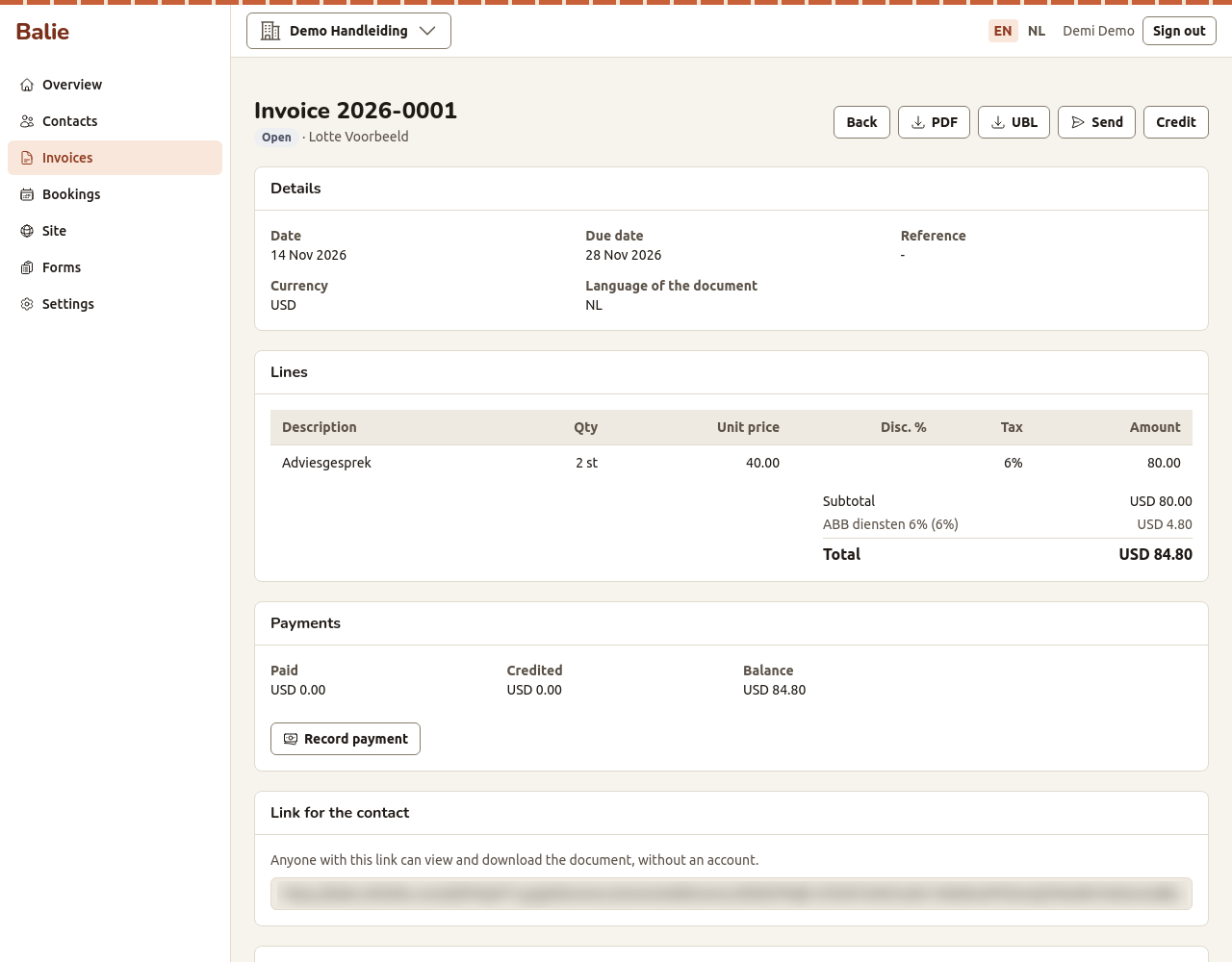
The page also shows this link under Link for the contact. Anyone with the link can view and download the document, so share it only with the customer.
Under History you see when the document was Issued, Sent, Viewed by the contact and Downloaded by the contact, and every payment and reminder.
To download the files yourself, use the PDF and UBL buttons on the document page.
Record a payment
Section titled “Record a payment”When money arrives, record it on the invoice:
- Open the invoice and, under Payments, choose Record payment.
- Fill in the Amount, the Date and the Method: Bank transfer, Cash, Card, Pin or Other. Reference is optional, for example the bank’s transaction number.
- Choose Save.
A partial payment is fine: the invoice becomes Partly paid and the Balance shows what is left. When a customer pays too much, the invoice shows Paid too much. A payment cannot be changed or deleted afterwards.
If you connected a payment provider, customers can also pay online from the invoice link. Balie then records the payment by itself, with the method Online. See Online payments.
Correct an invoice with a credit note
Section titled “Correct an invoice with a credit note”- Open the issued invoice and choose Credit. Balie asks Create a credit note for this invoice? Confirm.
- Balie makes a draft credit note with the same lines. Change it to credit only part of the invoice, and fill in the Reason.
- Choose Issue.
Credit notes have their own number series (for example CN-2026-0001). Together
they can never credit more than the invoice: Balie says The credit is more than
what is left to credit if you try.
If the customer had already paid, record the money you pay back on the credit note: under Pay back choose Record refund, fill in the amount, date and method, and choose Save.
Quotes
Section titled “Quotes”- Open Invoices and choose New quote.
- Fill it in as an invoice. Instead of a due date it has Valid until (empty: 30 days).
- Save draft, then Issue and Send it as an invoice.
- When the customer accepts, open the quote and choose Make invoice. Balie makes a draft invoice with the same contact and lines. Check it and issue it.
A quote has a PDF but no UBL file.
Overdue invoices and reminders
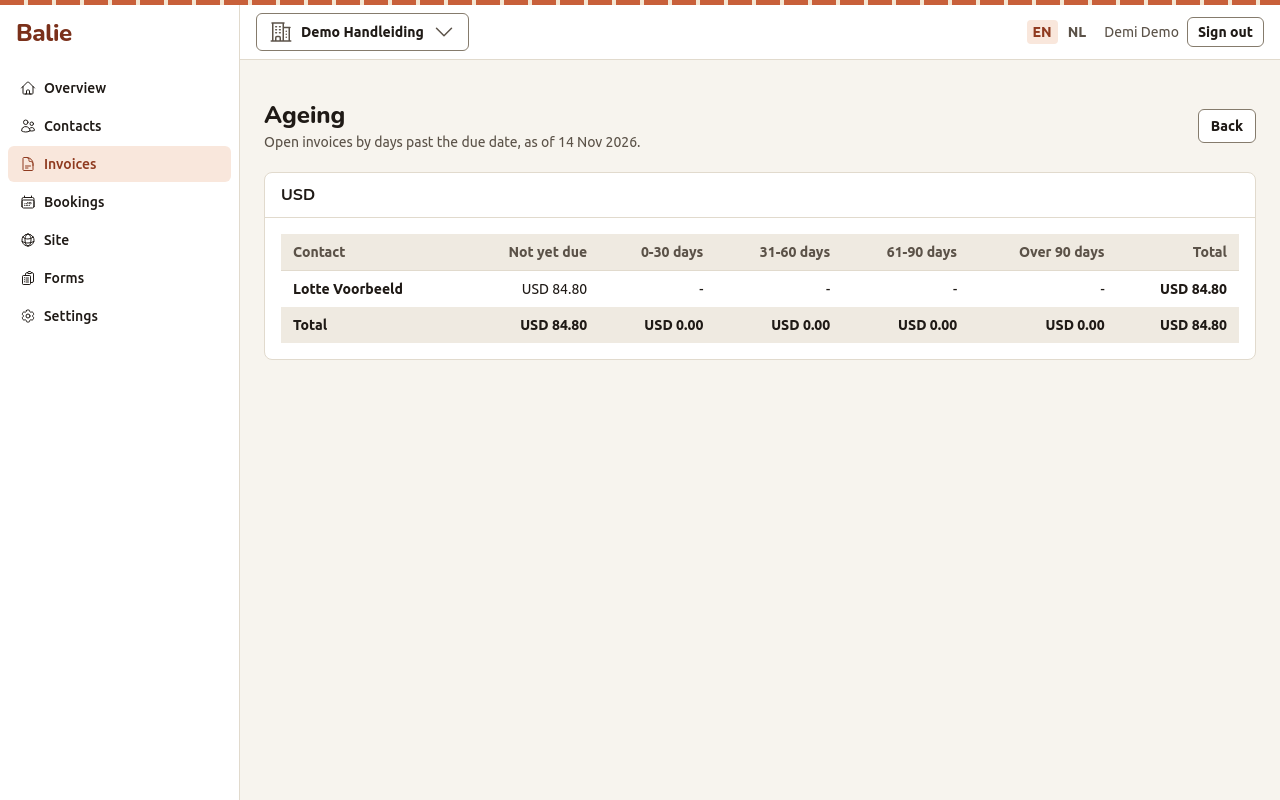
Section titled “Overdue invoices and reminders”- Ageing (button on the invoice list) shows who still owes you money, grouped by how late it is: Not yet due, 0-30 days, 31-60 days, 61-90 days and Over 90 days.
- Balie can send payment reminders by e-mail by itself. Switch this on in Invoicing settings.
Export for your bookkeeper
Section titled “Export for your bookkeeper”On the invoice list:
- Export CSV downloads your documents;
- Export payments downloads your payments.
Both are spreadsheet files (CSV). See Import and export formats.
Delete a draft
Section titled “Delete a draft”Open the draft and choose Delete. Only drafts can be deleted. Issued documents are kept for as long as the law asks you to keep them.
Who can do what
Section titled “Who can do what”Owners and bookkeepers write, issue, send and record payments. Editors and staff can look at documents but not change them. See Roles and permissions.