

Settings
BalieSettings
Settings has four parts: Details, People, API keys and Your subscription. Only owners can change them; other people see them.
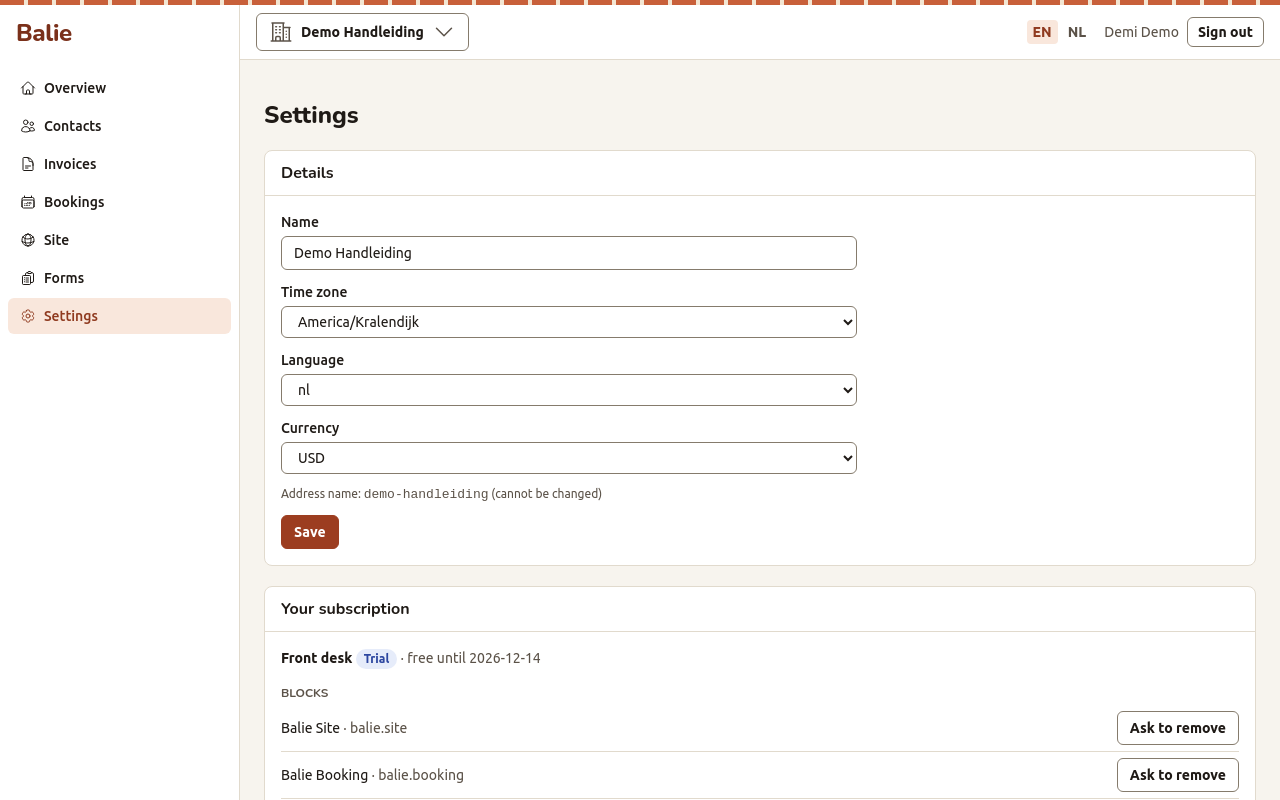
Details
Section titled “Details”| Setting | What it changes |
|---|---|
| Name | The name of your organisation, shown in Balie and as the sender name of mails to your customers. |
| Time zone | The time zone of your bookings, the dates of your invoices and the times in the form inbox. |
| Language | The language of the organisation, used for mails when Balie does not know the language of the person. |
| Currency | The currency of your invoices. |
| Address name | The first part of your website address (your-name.boneiru.online). It cannot be changed. |
Choose Save after a change.
People
Section titled “People”People in this organization lists everyone with their Email and Role.
Add a person
Section titled “Add a person”- The person signs in to Balie once with their own account, so that Balie knows them. See Signing in.
- Under Add by email address, type their e-mail address, choose the Role and choose Add.
If Balie says No account with this email address. They must sign in once first., the person has not signed in yet.
The roles are Owner, Editor, Bookkeeper and Staff. See Roles and permissions.
Remove a person
Section titled “Remove a person”Choose Remove next to the person and confirm. An organisation always keeps at least one owner.
API keys
Section titled “API keys”An API key lets another program, for example your accounting software or your own website, read or change data in your organisation. Each key holds only the rights you give it.
- Under New key: name, type a name that says what the key is for, for example “Accounting export”.
- Tick the Scopes the program needs, for example
invoices:read. Give no more than it needs:...:readonly reads,...:writealso changes. - Choose Create key.
- Balie shows the key once: Copy this key now. It is not shown again. Copy it into the other program.
The list shows each key’s name, how it Starts with, its Scopes and its Status (Active or Revoked). Revoke stops a key at once; programs that use it stop working.
The technical description of the API is for developers; ask us for it.
The scopes are: organization:read, organization:write, contacts:read,
contacts:write, invoices:read, invoices:write, payments:read,
payments:write, webhooks:read, webhooks:write, bookings:read,
bookings:write, pages:read, forms:read.
Your subscription
Section titled “Your subscription”See Your subscription.
Start another organisation
Section titled “Start another organisation”You can run more than one organisation with the same account, for example a shop and a foundation.
- Open the list of your organisations (the name of the organisation at the top) and choose New organization.
- Fill in the Name, the Address name (3 to 40 lower-case letters, digits and hyphens; it cannot be changed later), the Time zone, the Language and the Currency.
- Choose Create organization. You become its owner.