

Your website
BalieSite
Under Site you build your public website. A site is a set of pages; a page is a list of sections, such as a heading with an image, text, opening hours or a booking button. You write every page in each language you turned on, and visitors get a language switch.
Your site is at your-name.boneiru.online from the start. You can also use a
domain name you own: see Site settings and domains.
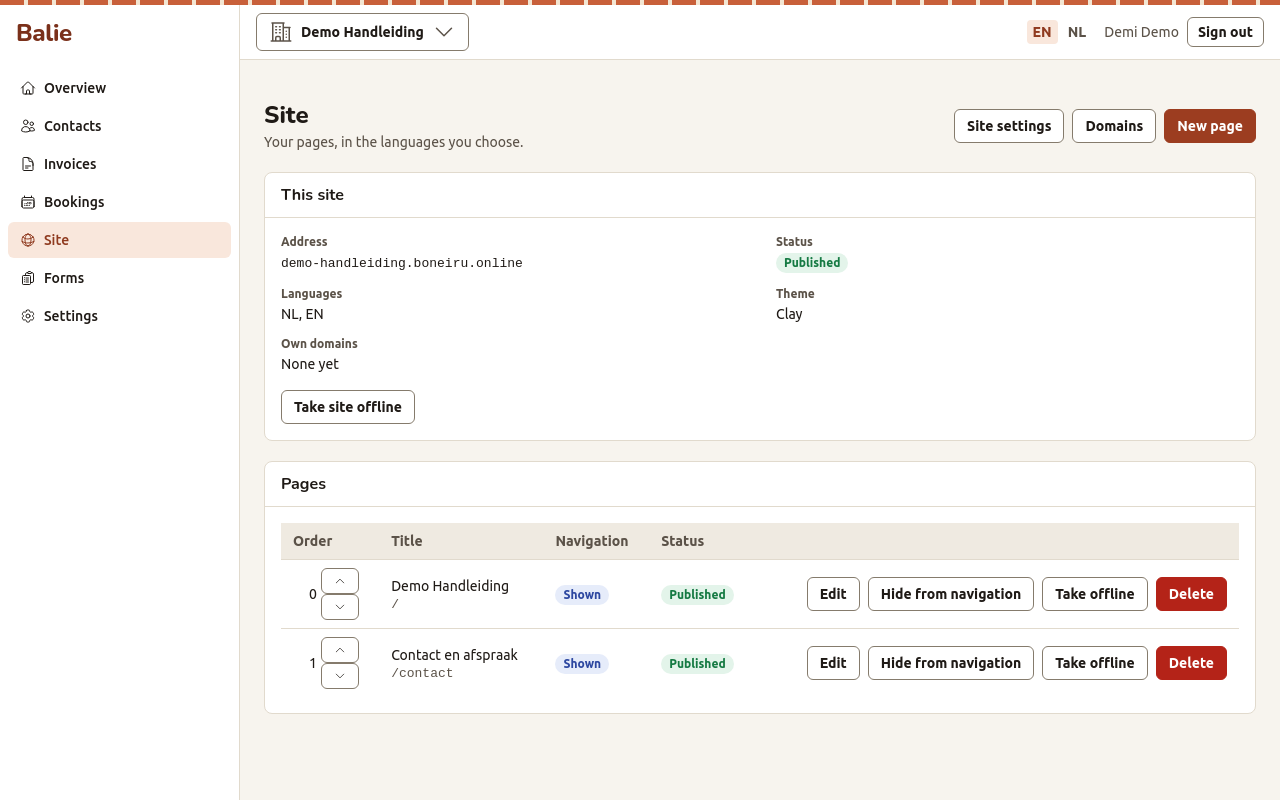
The site screen
Section titled “The site screen”This site shows:
- Address: where your site answers. Open it to look at the public site.
- Status: Published or Not published. Until you publish the site, visitors see a short notice instead of your pages.
- Languages, Theme and Own domains: set under Site settings.
Pages lists every page with its Title, its place in the Navigation (Shown or Hidden) and its state (Draft when it has changes that are not published yet).
If Site says The site is not set up yet, your organisation has no website in its plan yet. Ask us.
Add a page
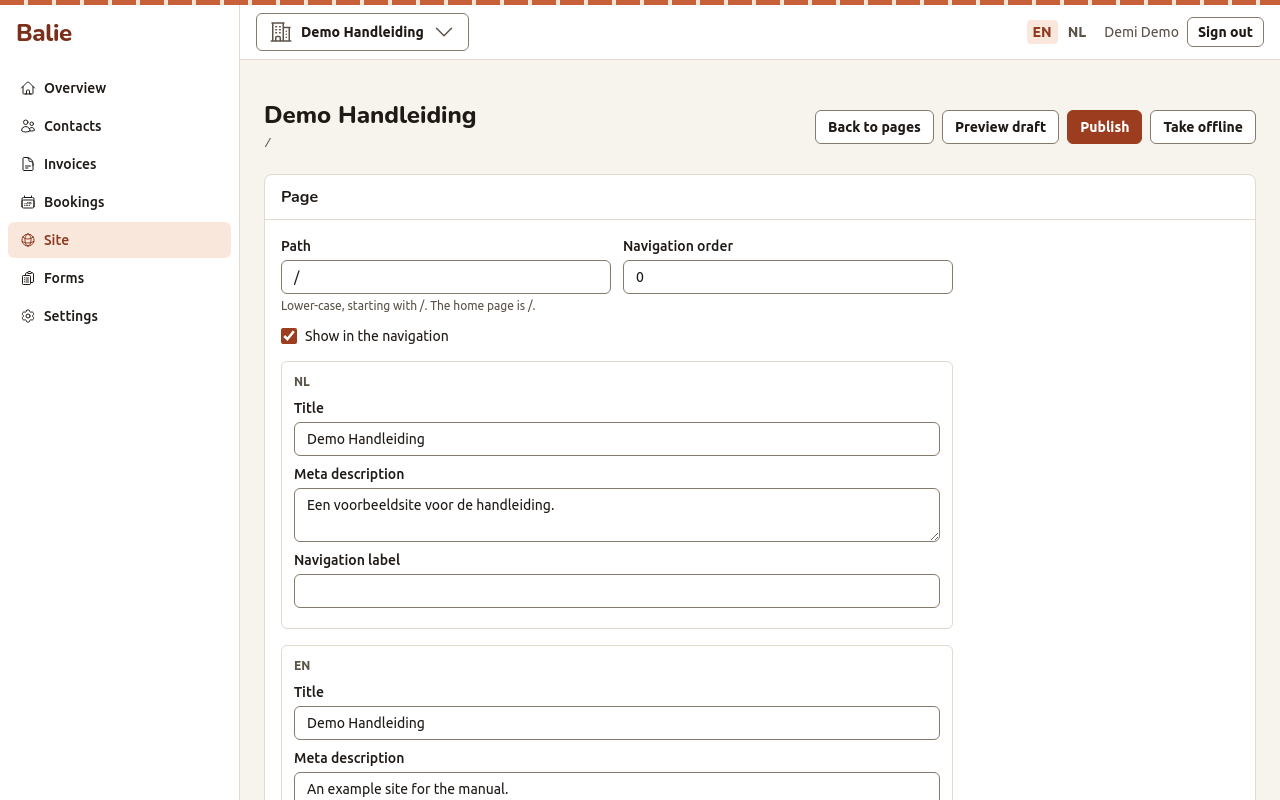
Section titled “Add a page”- Open Site and choose New page.
- Fill in:
- Path: the address of the page after the domain, in lower case, starting
with
/. The home page is/. Example:/prices. - Navigation order: a number; lower numbers come first in the menu.
- Show in the navigation: tick it to list the page in the site’s menu.
- Per language: the Title, a Meta description (the short text search engines show) and the Navigation label (the word in the menu, if it should be shorter than the title).
- Path: the address of the page after the domain, in lower case, starting
with
- Choose Save page. Balie says Page created. Add its sections now.
Add sections to a page
Section titled “Add sections to a page”- Under Add a section, choose the type and choose Add.
- Fill in the section. Every text field appears once per language.
- Choose Save section.
Move up and Move down change the order; Remove deletes a section.
The section types
Section titled “The section types”| Type | What it shows | How to fill it in |
|---|---|---|
| Heading with image | A large heading with text and an image; usually the top of the home page | Heading, Text, Image, Image description |
| Text | Text with headings, lists and links | Text |
| Image and text | An image beside text | Heading, Text, Image, Image description, Image position (Left or Right) |
| Gallery | A row of images | Images: one per line, `image id |
| Cards | Boxes side by side, each with a title, text and an optional link and image | Cards: one per line, `title |
| Price list | A list of products or services with prices | Prices: one per line, `name |
| Opening hours | Your week | Opening hours: one per line, `monday |
| Map and address | Your address with a link to a map | Address line 1, Address line 2, City, Postal code, Country, Link to the map |
| Quote | A quotation, for example from a customer | Quote, Attribution |
| Questions and answers | Frequently asked questions | Questions: one per line, `question |
| Call to action | A heading, text and one button | Heading, Text, Button label, Button link |
| Form | One of your forms | Form |
| Booking calendar | A button to your booking page | Service: one service or All services |
Formatting text. In a Text field you can use:
## heading, **bold**, _italic_, [link](https://...), - list and
1. list. The field shows these hints.
Images. Upload an image under Images in the page editor (PNG or JPEG, up to 5 MB), or directly in a section with Upload and use. Each image gets an id that you can choose in a section or type in a gallery or card line. Always fill in the Image description: people who cannot see the image hear or read it.
Preview and publish
Section titled “Preview and publish”- Preview draft shows the page as it will look (the content only; the theme is applied on the site itself). Hide preview closes it.
- Publish makes the current draft the public version. Balie asks: Publish this page? The current draft becomes the public version.
- Take offline removes the page from the public site; visitors get “page not found”.
If something is missing, Balie does not publish and lists what to fix at the top of the page, for example: An image is required before this page can be published. Each problem also shows beside its section.
You can keep editing a published page: visitors keep seeing the published version until you publish again.
Publish the whole site
Section titled “Publish the whole site”On the Site screen:
- Publish site makes the site reachable for visitors. Balie asks Publish the site? Visitors can then reach it.
- Take site offline hides the whole site; visitors see a “not found” page.
Bring back an older version
Section titled “Bring back an older version”Every publication is kept.
- Open the page and scroll to Version history.
- Under Published versions, find the version and choose Publish again. Balie asks you to confirm: the current draft is replaced.
Change the menu of your site
Section titled “Change the menu of your site”On the Site screen:
- Move up and Move down change the order of the pages in the menu;
- Hide from navigation and Show in navigation take a page out of the menu or put it back. A hidden page is still reachable by its address.
Delete a page
Section titled “Delete a page”On the Site screen, choose Delete next to the page. This also deletes its version history.
Who can do this
Section titled “Who can do this”Owners and editors build and publish the site. Other roles can look at the pages and the history. See Roles and permissions.