

Forms
BalieForms
Under Forms you build forms for your website, such as a contact form or a registration form, and you read what people send in an Inbox. Balie keeps spam out without asking visitors to solve puzzles, and without sending anything to other companies.
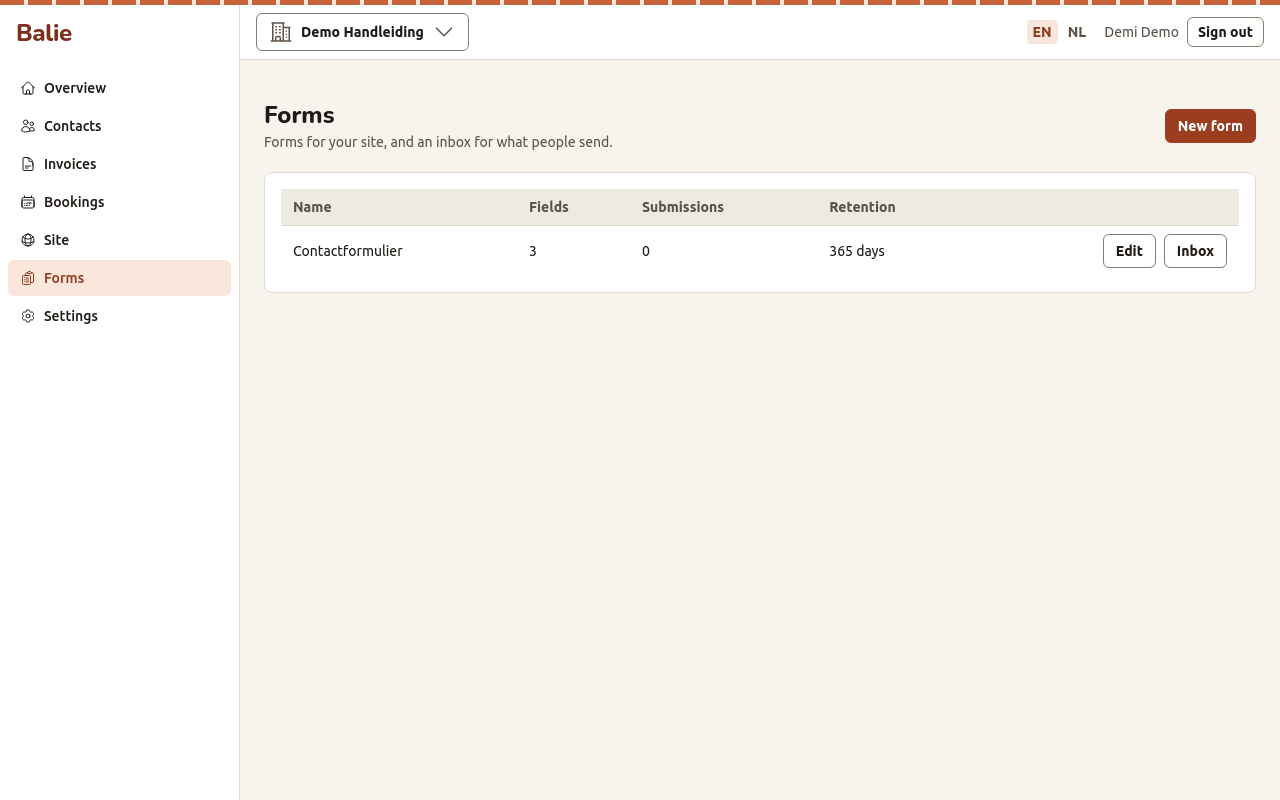
Make a form
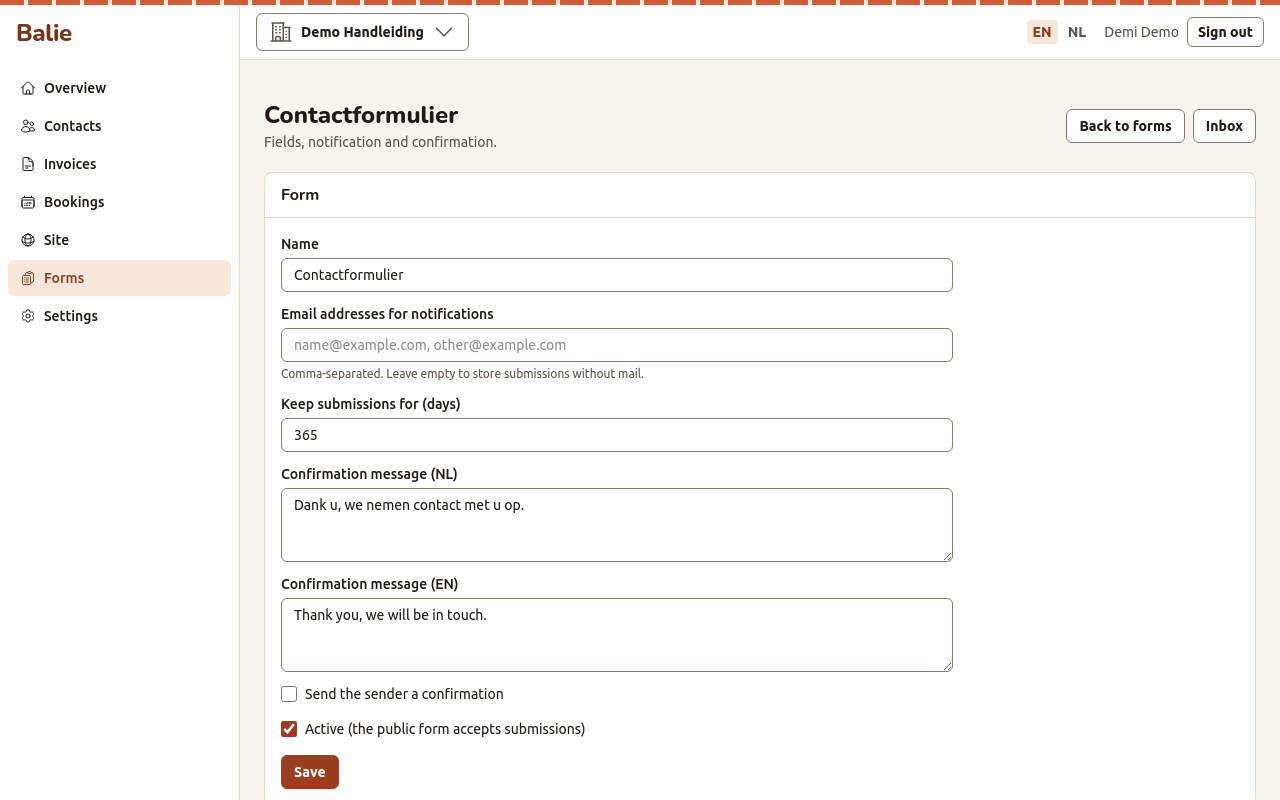
Section titled “Make a form”- Open Forms and choose New form.
- Fill in:
- Name: for you; visitors see the form’s questions, not this name;
- Email addresses for notifications: the addresses that get a mail for every submission, separated by commas. Leave it empty to keep submissions in the inbox only;
- Keep submissions for (days): after this many days a submission is deleted by itself. The default is 365 days. Keep personal data no longer than you need it;
- Confirmation message: what the visitor sees after sending;
- Send the sender a confirmation: also mail the confirmation to the visitor, when the form asks for an e-mail address;
- Active (the public form accepts submissions): untick it to close the form.
- Choose Save. Balie says Form created. Add its fields now.
Add fields
Section titled “Add fields”- Under Add a field, choose the Type and choose Add.
- Fill in the field:
- Key: a short name for the field, used as the column name in the CSV
export, for example
phone; - Label: the question, per language;
- Help: an optional hint under the question;
- Options: for a choice, one option per line,
value | label; - Largest file (bytes): for a file upload (at most 5 MB);
- Required: tick it if the visitor must answer.
- Key: a short name for the field, used as the column name in the CSV
export, for example
- Choose Save field.
Up and Down change the order, Remove deletes a field. A form can have up to 30 fields.
The field types are:
| Type | The visitor gives |
|---|---|
| Text | one line of text |
| Long text | several lines |
| an e-mail address | |
| Phone | a phone number |
| Number | a number |
| Date | a date |
| Choice | one of your options |
| Multiple choice | any of your options |
| File upload | a PDF, PNG or JPEG file |
| Consent | a tick, for example “I agree that you contact me” |
Put the form on your website
Section titled “Put the form on your website”The form editor shows, under Where it is, the public address of the form on your site. You can link to that address directly, or show the form on a page:
- Open Site and the page.
- Add a section of the type Form and choose the form.
- Save the section and publish the page.
See Your website.
What a visitor sees
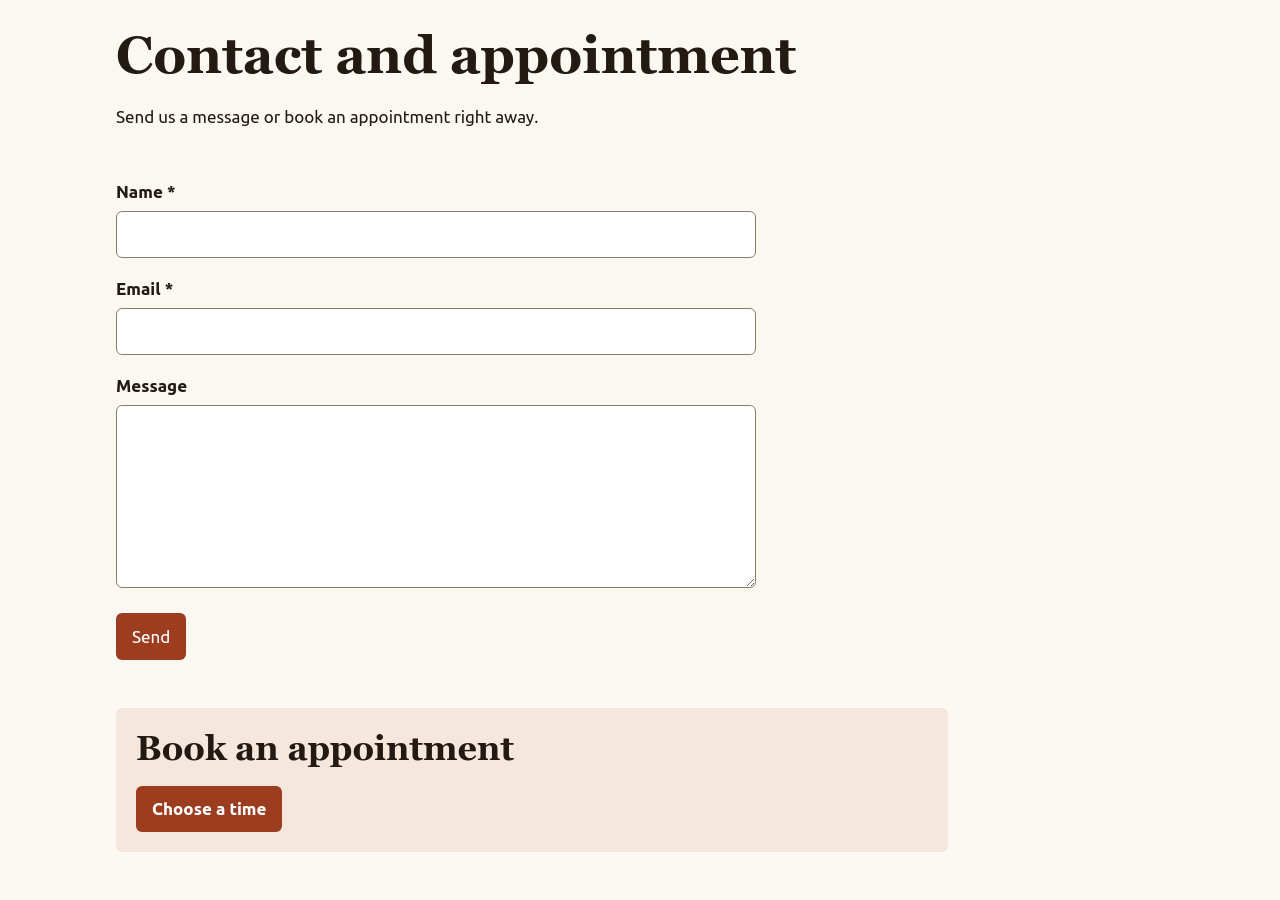
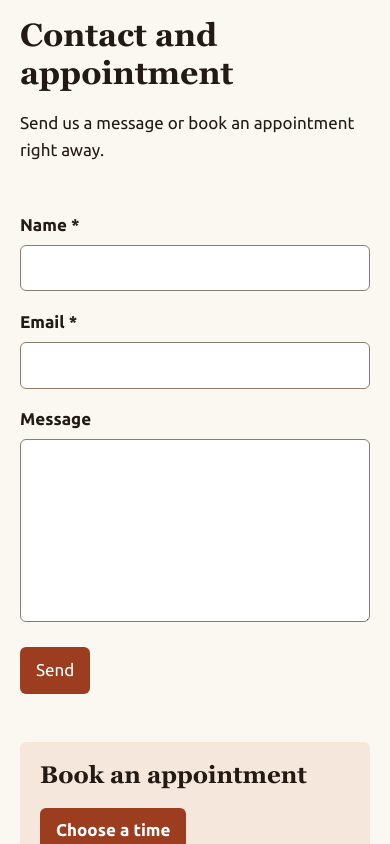
Section titled “What a visitor sees”On your site the form shows its questions, with a star after the required ones, and a Send button. When a visitor sends it, the answers are stored in the form’s Inbox and the page shows your Confirmation message; a missing or wrong answer is shown next to its question instead, and nothing is stored.
Read and handle submissions
Section titled “Read and handle submissions”- Open Forms and choose Inbox next to the form.
- The inbox shows how many submissions there are and how many are not handled. Use Show to list All or only Not handled submissions.
- Open a submission to see the Answers, when it was Received and From whom. When the visitor gave an e-mail address, the submission is linked to a Contact. Download file opens an uploaded file.
- Choose Mark handled when you have dealt with it (Mark unhandled turns it back). Delete removes it, for example when the person asks you to.
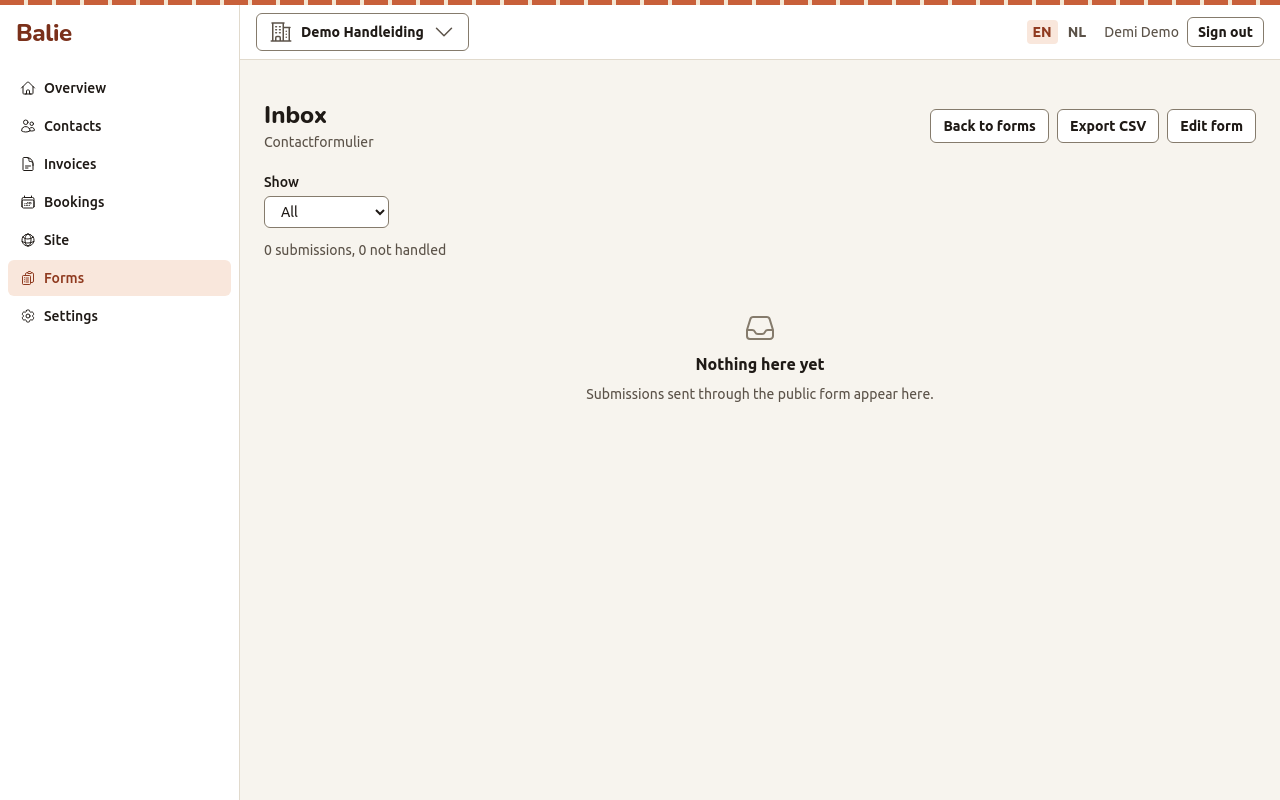
Export CSV downloads all submissions of the form as a spreadsheet file, one column per field. See Import and export formats.
How spam is kept out
Section titled “How spam is kept out”Without any action from you, Balie refuses submissions that are sent faster than a person can fill in the form, that fill in a hidden field only robots see, or that come in too often from the same address. Real visitors notice nothing.
Who can do this
Section titled “Who can do this”Owners and editors build forms and handle submissions. Everyone in the organisation can read the inbox.