

Bookings
BalieBookings
Under Bookings you see what people have booked, and you add, move and cancel bookings yourself. Visitors book on your website; see What your visitors and customers see.
Before anyone can book, set up what can be booked (services) and who or what serves it (resources): see Booking setup.
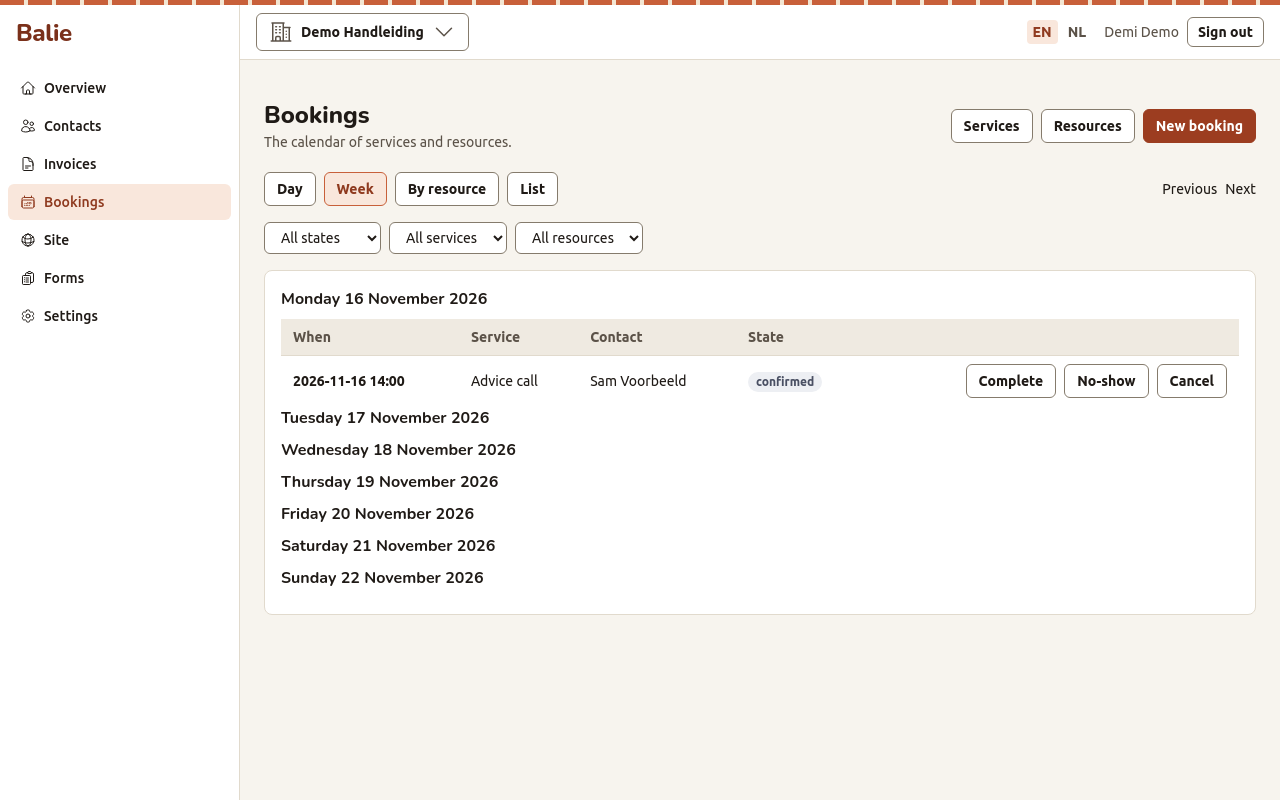
The calendar
Section titled “The calendar”Choose a view at the top:
- Day: one day;
- Week: seven days;
- By resource: one column per person, room, vehicle or set of seats;
- List: every booking in the period, one per line.
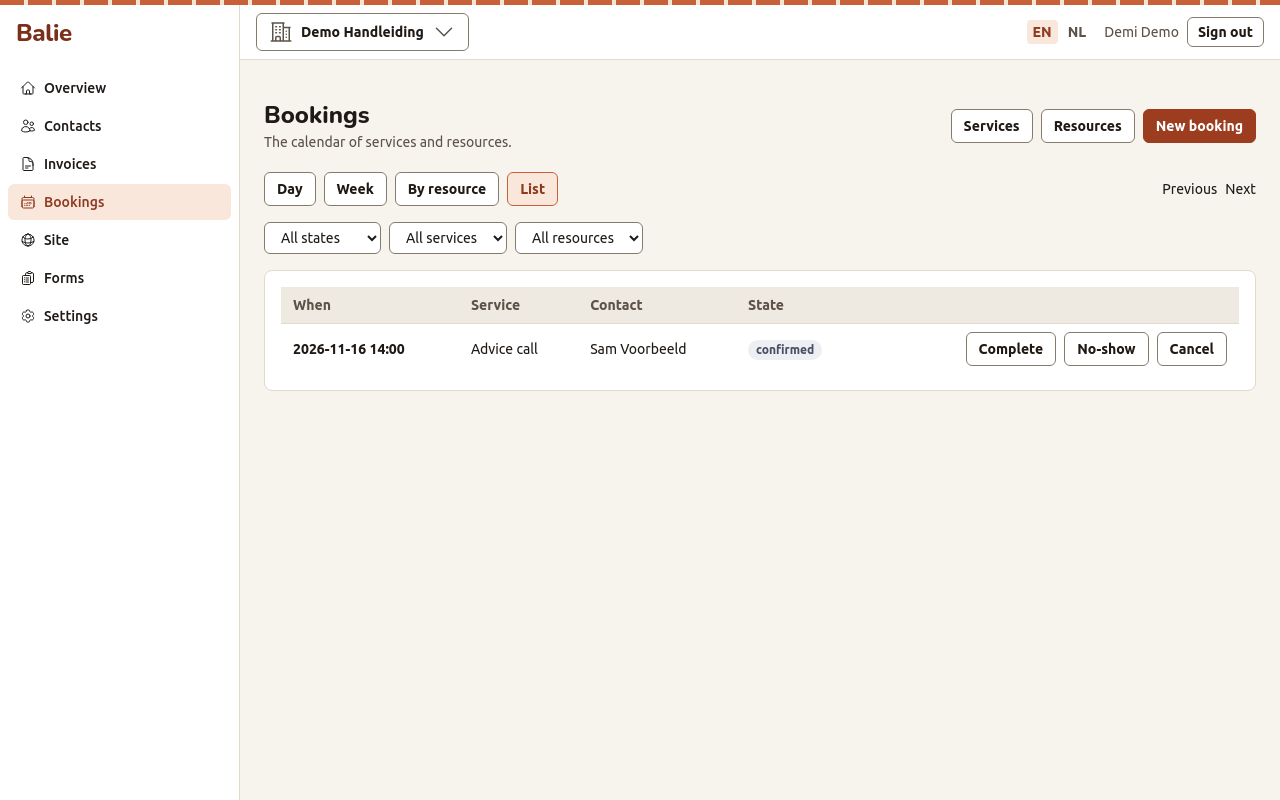
Previous and Next move through time. The filters narrow the calendar to one state (All states shows all), one service or one resource.
A booking has one of these states:
| State | Meaning |
|---|---|
| Requested | The visitor asked for a time and waits for your approval (for services with manual approval). |
| Confirmed | The booking stands. |
| Cancelled | The booking was cancelled, by you or by the visitor. |
| Completed | It took place. |
| No-show | The person did not come. |
Only Requested and Confirmed bookings hold a time slot.
Approve or decline a request
Section titled “Approve or decline a request”A service with manual approval creates Requested bookings. The Overview shows how many wait for approval.
- Open Bookings and find the booking (filter on Requested).
- Choose Approve or Decline.
The visitor gets an e-mail either way.
Add a booking yourself
Section titled “Add a booking yourself”For a booking made by phone or at the counter:
- Open Bookings and choose New booking.
- Choose the Service and the Contact.
- Choose the Start time and, for a class, the Number of places.
- Add Notes if you want, and choose Save.
Balie only accepts a time that is really free, the same as for visitors. If the time is taken it says That time is no longer free.; for a full class The class is full.
A booking you add is Confirmed at once.
Look at a booking
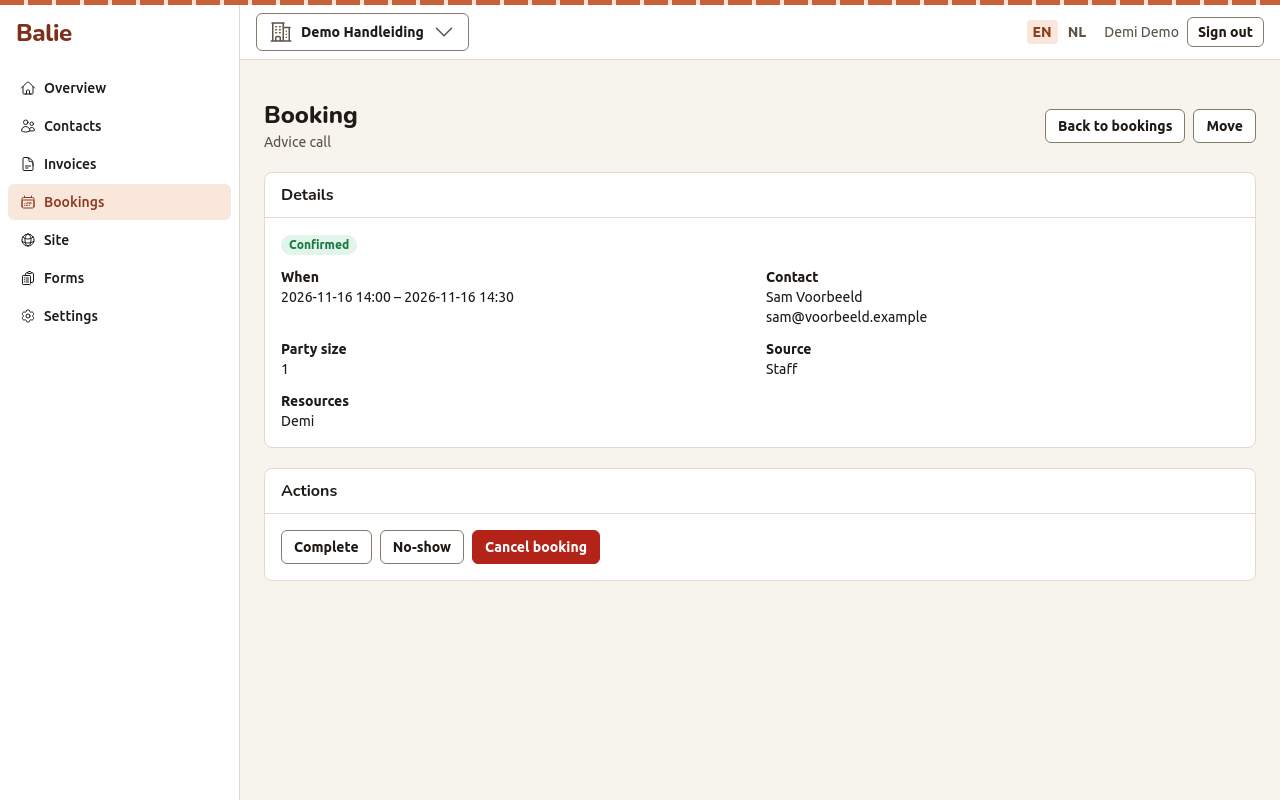
Section titled “Look at a booking”Open a booking to see When, the Contact, the Party size, the Resources, the Notes, the Answers to the service’s questions and the Source: Public (booked on your website), Staff (added by someone in your organisation) or API (added by another program).
Move a booking
Section titled “Move a booking”- Open the booking and choose Move.
- Choose the new Start and choose Save.
The person gets an e-mail with the new time.
Cancel, complete or mark as no-show
Section titled “Cancel, complete or mark as no-show”Open the booking and choose, under Actions:
- Cancel booking: Balie asks Cancel this booking? The time becomes free and the person gets an e-mail;
- Complete: after the appointment took place;
- No-show: when the person did not come.
What people receive by e-mail
Section titled “What people receive by e-mail”Balie mails the person who booked:
- a confirmation with a calendar invitation (or, for manual approval, a mail that the request was received, and later the answer);
- a mail when a booking is moved or cancelled;
- reminders before the booking, if the service has them;
- in every mail, a private link to move or cancel the booking themselves, as long as the service’s notice period allows it.
Who can do this
Section titled “Who can do this”Owners, editors and staff work in the calendar. Only owners and editors change services, resources and opening hours. See Roles and permissions.