

Invoicing settings and tax rates
BalieInvoices
Everything that is printed on your invoices, quotes and credit notes, and the way they are numbered, is set in three places on the Invoices screen:
| Button on the invoice list | What you set |
|---|---|
| Settings | Seller details, bank account, footer, payment term, reminders, logo, number patterns |
| Tax rates | The tax rates your documents can use |
| Online payments (from Settings) | A payment provider, so customers can pay an invoice online |
Only owners and bookkeepers can change these settings. Online payments can be changed by owners only.
Seller details
Section titled “Seller details”- Open Invoices and choose Settings.
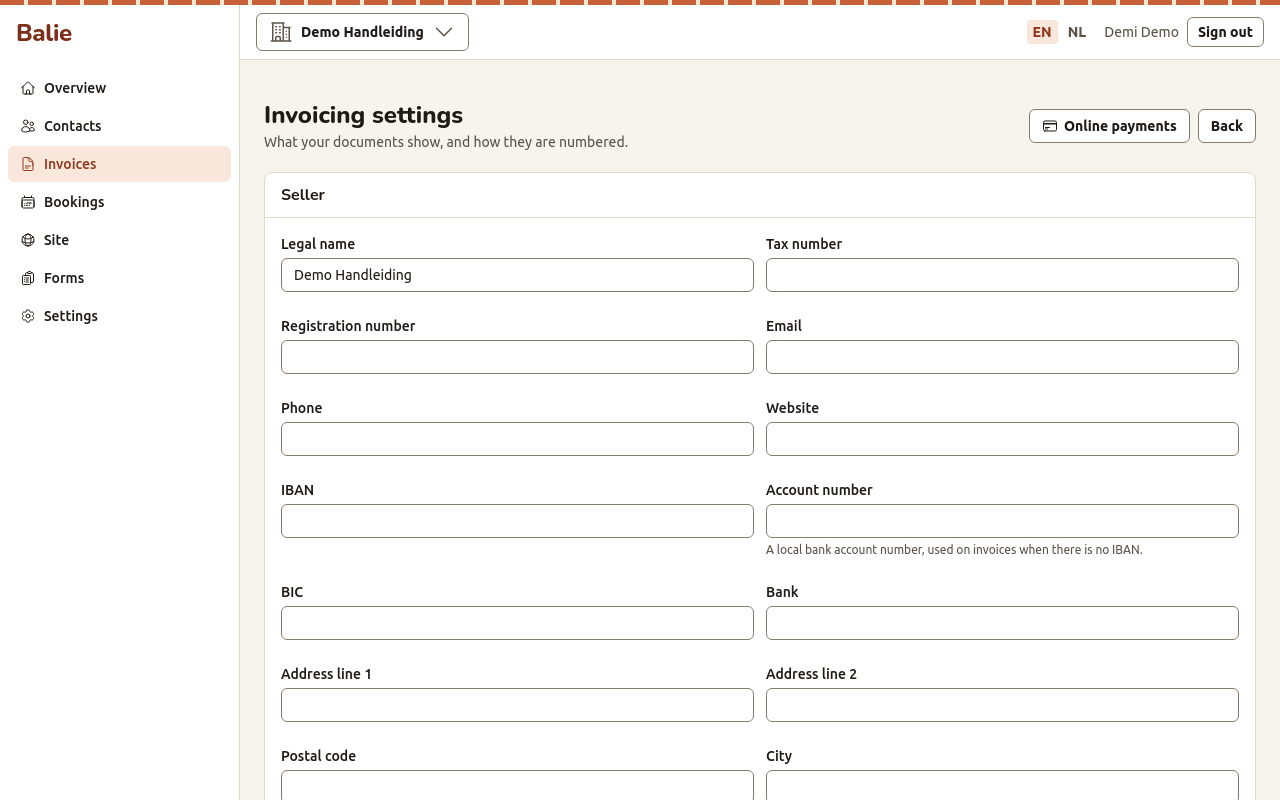
- Under Seller, fill in what your documents must show:
- Legal name, Tax number, Registration number (for example your Chamber of Commerce number);
- Email, Phone, Website;
- IBAN and BIC, or, for a local bank account without an IBAN, the Bank and the Account number;
- your address: Address line 1, Address line 2, Postal code, City, Region, Country (two letters);
- Footer text: a line printed at the bottom of every document.
- Choose Save.
These details are copied into a document when it is issued. Changing them later does not change documents you already issued.
Payment term
Section titled “Payment term”Payment term (days) is the number of days between the date of an invoice and its due date. An invoice whose Due date is left empty gets this term.
Reminders
Section titled “Reminders”Balie can e-mail a payment reminder when an invoice is overdue.
- Tick Send payment reminders by email.
- In Send reminders after (days past due), type the days, separated by
commas, for example
7, 14. Up to six numbers. - Choose Save.
Each reminder is sent once. A reminder goes to the contact’s e-mail address and appears in the invoice’s History as Reminder sent.
Under Logo, choose Upload logo and pick a JPEG file (colour or grey, up to 1 MB). Without a logo your name is printed in large type. Remove logo takes it away.
Number patterns
Section titled “Number patterns”Every document type has its own number series: Invoices, Credit notes and Quotes. Numbers have no gaps.
- Under Numbering, find the document type.
- Change the Pattern. Use
{YYYY}or{YY}for the year and{NNNN}for the counter (as many N as digits you want). Examples:{YYYY}-{NNNN}gives2026-0001;CN-{YYYY}-{NNNN}givesCN-2026-0001. - Tick Restart every year to start the counter at 1 each year (the pattern must then contain the year).
- Choose Save pattern.
A new pattern applies to documents you issue from then on.
Tax rates
Section titled “Tax rates”Every line of a document needs a tax rate, also a line without tax (use a 0 % rate). You make the rates yourself, or load a starter set.
Load a starter set
Section titled “Load a starter set”- Open Invoices and choose Tax rates.
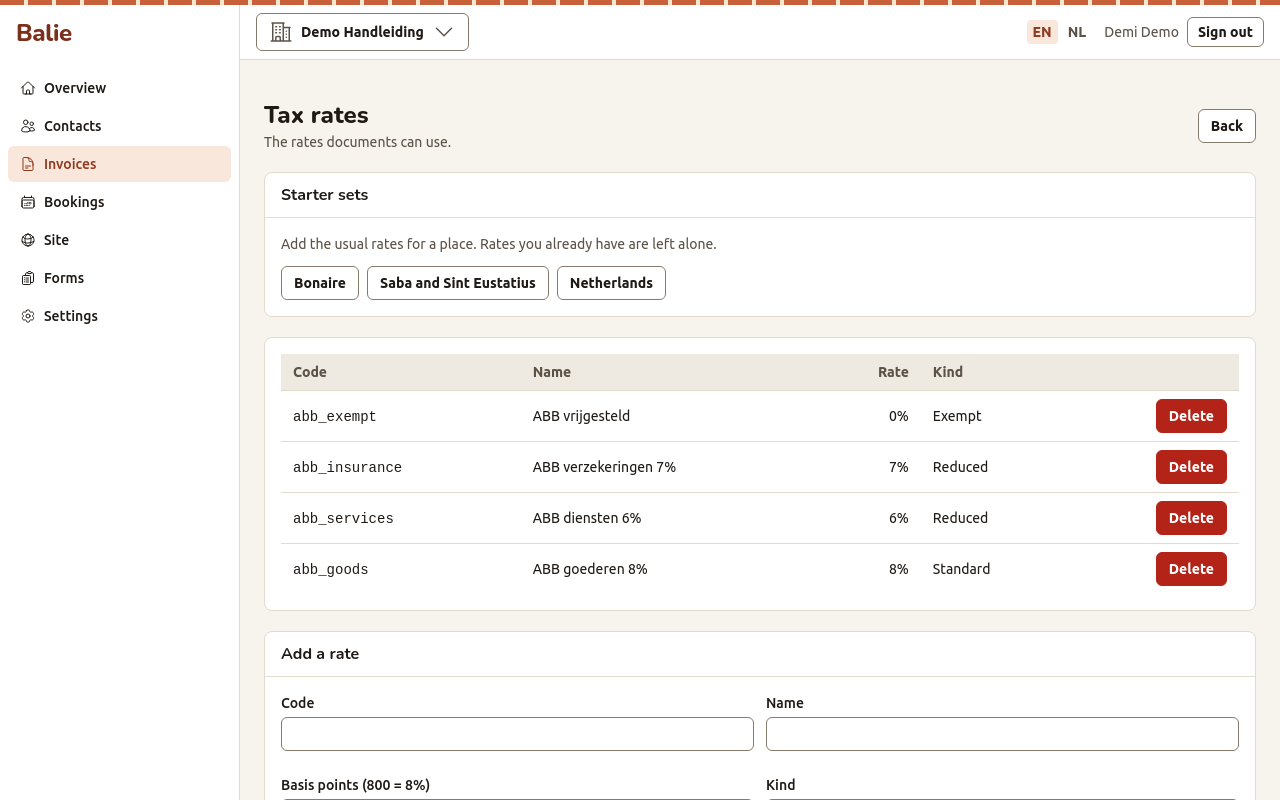
- Under Starter sets, choose Bonaire, Saba and Sint Eustatius or Netherlands.
Balie adds the usual rates for that place. Rates you already have are left alone. For Bonaire this gives the ABB rates for goods (8 %), services (6 %), insurance (7 %) and an exempt rate (0 %). Check the rates against your own tax situation before you issue invoices.
Add a rate yourself
Section titled “Add a rate yourself”- Under Add a rate, fill in:
- Code: a short code, for example
abb_goods; - Name: what is printed on the document;
- Rate, in basis points: 800 is 8 %, 600 is 6 %, 0 is 0 %;
- Kind: Standard, Reduced, Zero, Exempt or Reverse charge.
- Code: a short code, for example
- Choose Add rate.
A rate that is used on a document cannot be deleted or changed: Balie says This tax rate is used on a document. Add a new rate instead. This way a credit note always repeats the tax of its invoice.
Online payments
Section titled “Online payments”With a payment provider account, an invoice link gets a Pay button. The customer pays the whole open amount at the provider, and Balie records the payment by itself.
- Open Invoices, Settings, then Online payments.
- Choose Add provider account.
- Choose the Provider: Sentoo or Paga Direct.
- Choose the Mode: Test (no real money is moved) or Live.
- Give it a Label and fill in the credentials the provider gave you: for Sentoo the Merchant ID and Merchant secret, for Paga Direct the API token. API address is the provider’s address for this mode.
- Choose Save, then Test connection. Balie says The provider accepted the credentials. or what the provider answered.
Credentials are stored encrypted. Afterwards the screen only says set or not set; a field you leave empty when you change the account keeps its value.
With more than one account, Make default chooses the one offered first. Switch off stops offering an account without removing it. An account that has been used for payments cannot be removed, only switched off.
The provider must send its payment messages to the Webhook address that Balie shows for the account. Give that address to the provider if it asks for one.