

App passwords
KantoorSettings
Mail, calendar and contacts apps do not sign in with your Shiloh account. They use an app password: a long password that Kantoor makes for one device or app. Each app password works only for the protocols you allow, and you can revoke it at any time without changing anything else.
Create an app password
Section titled “Create an app password”-
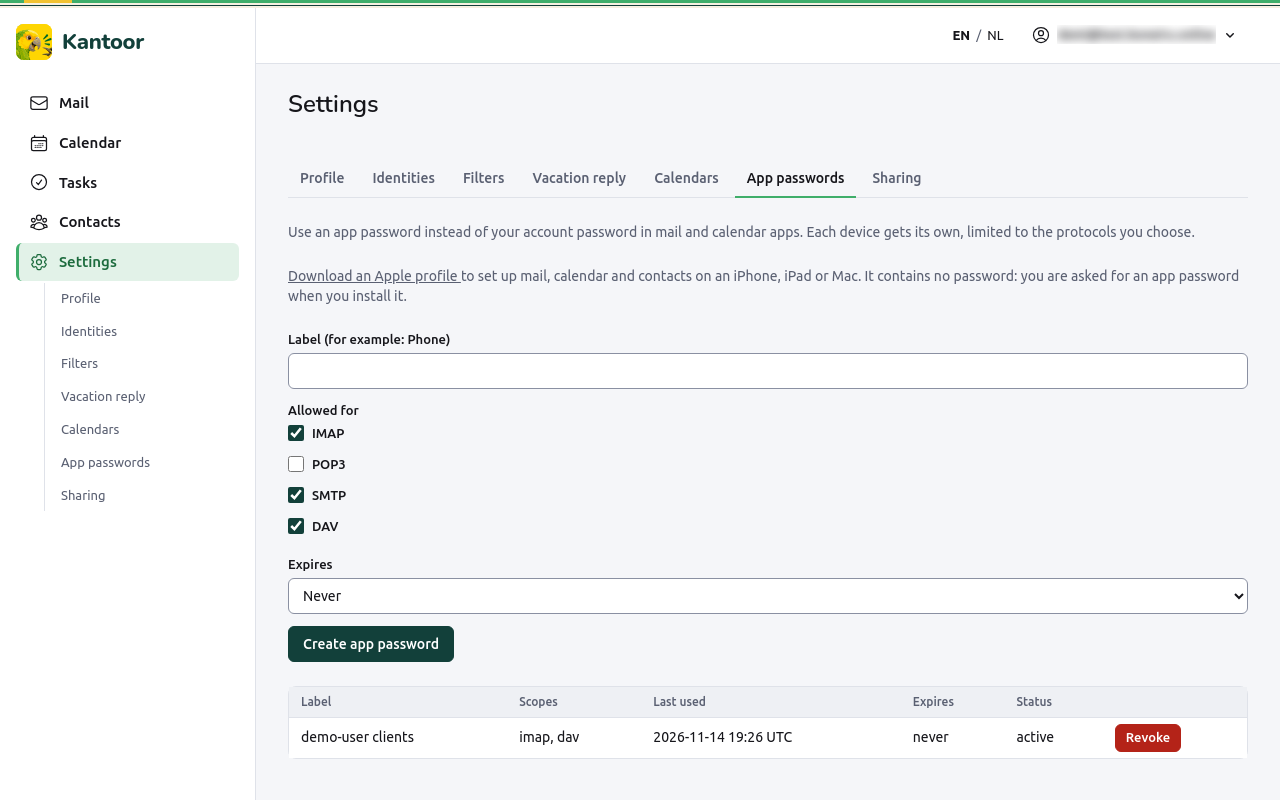
Open Settings, App passwords.
-
Type a Label, for example “Phone” or “Thunderbird at the office”.
-
Under Allowed for, tick what the app needs:
Tick Needed for IMAP reading mail in an app SMTP sending mail from an app DAV calendars, tasks and contacts (CalDAV and CardDAV) POP3 downloading mail with POP3 (only if your app cannot use IMAP) IMAP, SMTP and DAV are ticked to start with: that is what a phone or a mail program that also does calendars and contacts needs.
-
Under Expires, choose Never, In 30 days, In 90 days or In a year.
-
Choose Create app password.
-
Kantoor shows the password once: Copy the app password for ”…” now. It will not be shown again. Copy it into your app, then choose I have copied it.
In the app, the user name is your full e-mail address (the one you sign in with, or the address of a mailbox you use) and the password is the app password. See Mail and calendar apps.
See and revoke app passwords
Section titled “See and revoke app passwords”The list shows each password’s Label, Scopes, when it was Last used, and its Status: active, expired or revoked.
Revoke stops a password at once; the device that uses it can no longer connect. Revoke the password of a phone you lost, then create a new one for its replacement.
Apple devices
Section titled “Apple devices”Download an Apple profile gives a file that sets up mail, calendar and contacts on an iPhone, iPad or Mac in one go. See iPhone and iPad.