

Tasks
KantoorTasks
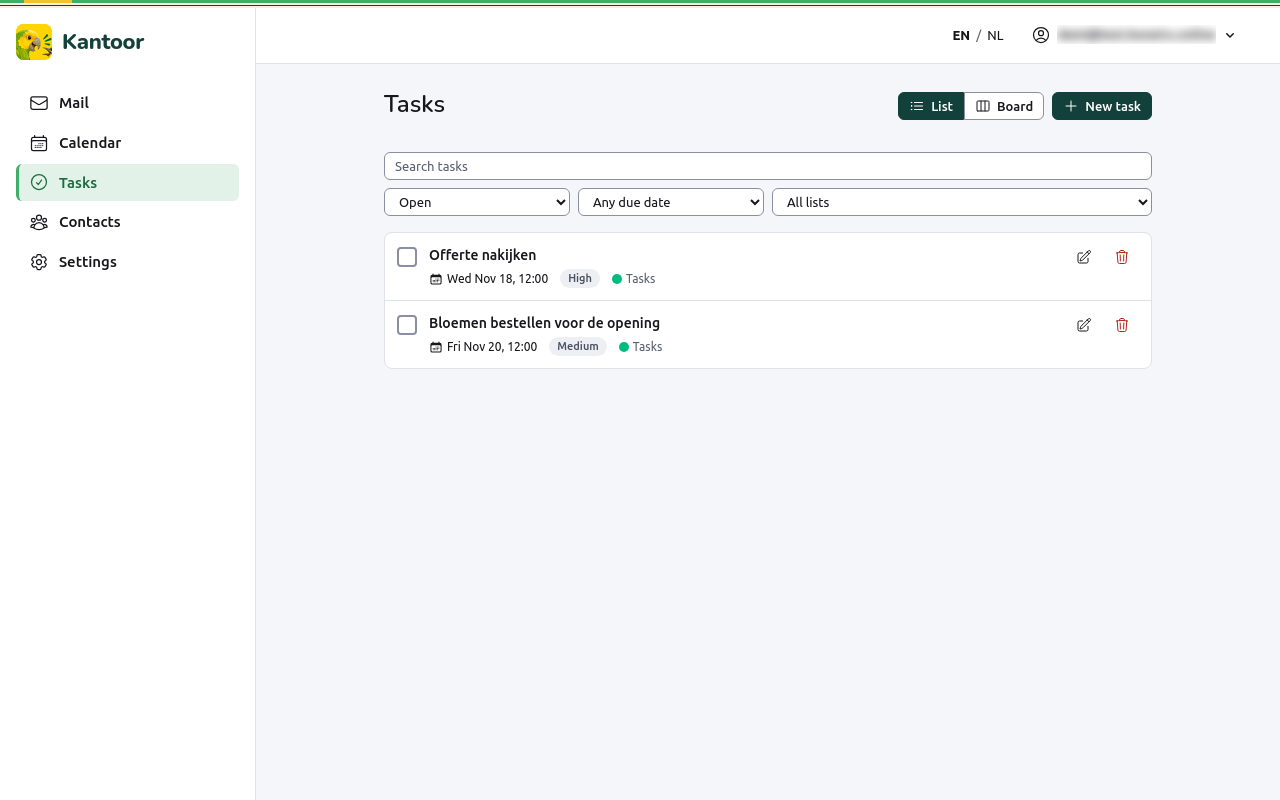
Open Tasks. Every user starts with a task list called Tasks. Tasks with a due date also appear in the calendar, and in task apps connected to Kantoor.
Add a task
Section titled “Add a task”- Choose New task.
- Fill in the Title and, if you want, Notes.
- Choose a Due date (optional): type a date or use Today, Tomorrow, In a week or No date. Add a Due time (optional).
- Choose a Priority: High, Medium, Low or None.
- Choose the List, and choose Save.
Mark a task done
Section titled “Mark a task done”Tick the box in front of the task. Untick it to open it again.
Find tasks
Section titled “Find tasks”Use the filters at the top:
- Search tasks: words in the title;
- Status: Open, Completed or All;
- Due: Any due date, Overdue, Due today, Next 7 days or No due date;
- the list: All lists or one list.
List or board
Section titled “List or board”The switch at the top changes between List and Board. The board has one column per status: To do, In progress, Completed and Cancelled.
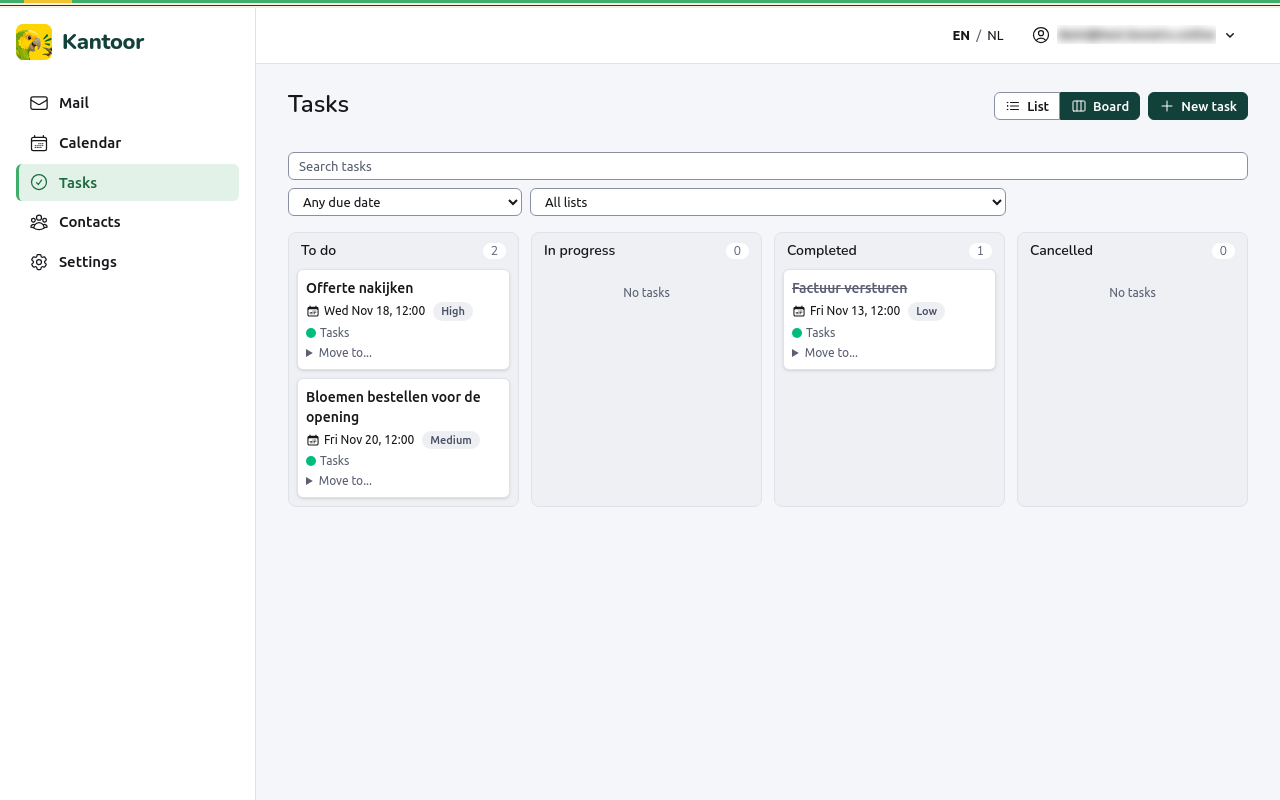
- Drag a card to another column to change its status. With a keyboard or on a phone, open Move to… on the card instead.
- A card shows the title, the due date (in red when it is overdue), the priority and the list.
- Choose the title to change the task.
Kantoor remembers the view you chose. You can also set it under Tasks view in Settings, Profile.
Change or delete a task
Section titled “Change or delete a task”Choose the task’s title to change it, then Save. When you change a task you can also set its Status: Needs action, In progress, Completed or Cancelled. Delete removes a task after you confirm.
Limits
Section titled “Limits”- Tasks have no person assigned to them.
- Kantoor does not repeat tasks. A repeating task made in another app is shown once.
- A list someone shared with you read-only cannot be changed.