

Calendar
KantoorCalendar
Open Calendar. Kantoor shows your events as a list per day, for a Week or a Month. Previous, Today and Next move through time.
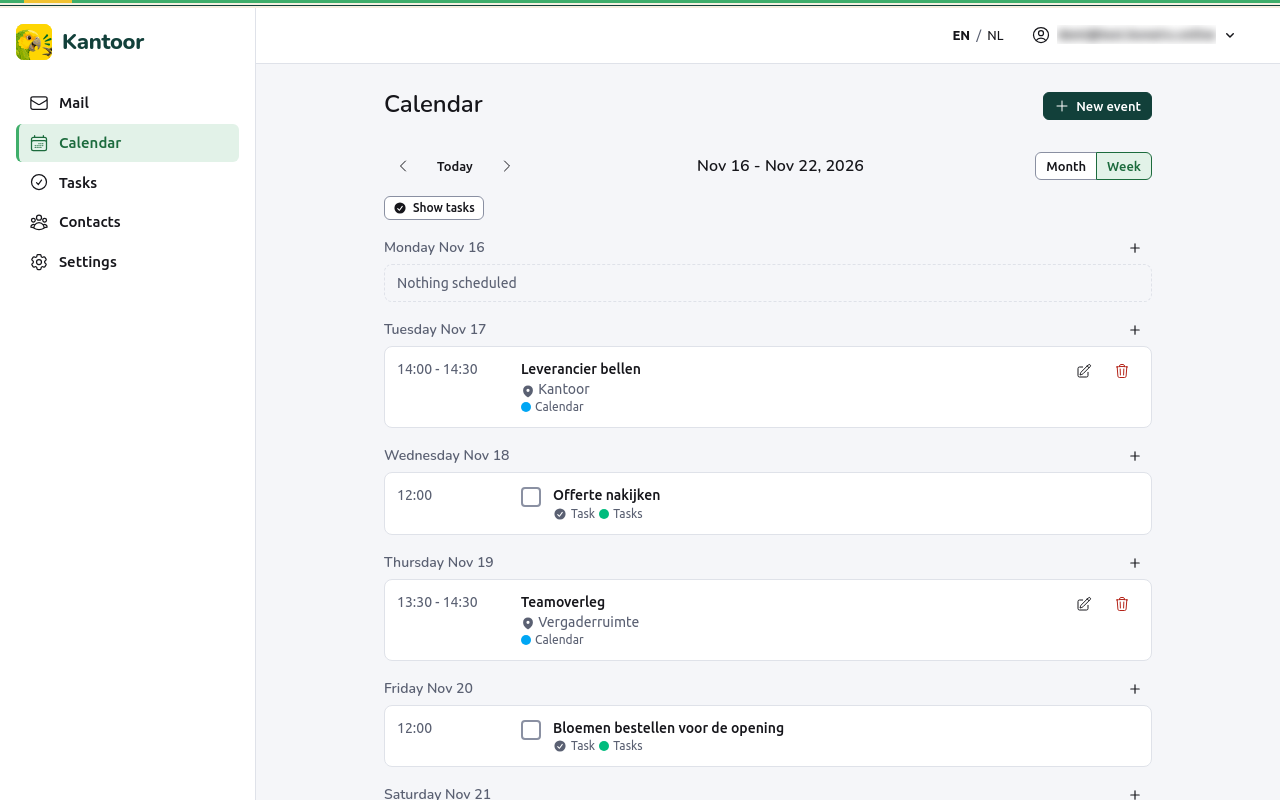
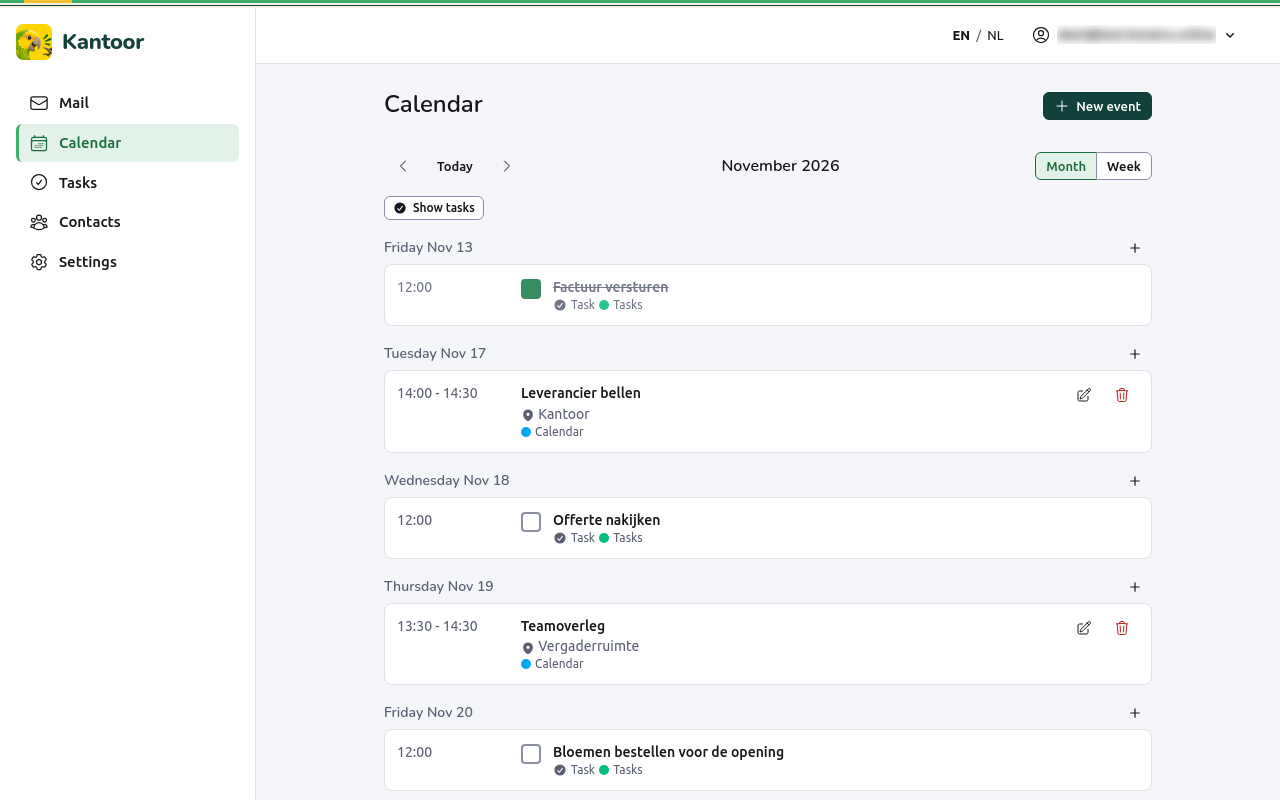
Under Calendars, the legend lists your calendars with their colours. Choose a calendar to hide or show its events. Next to your own calendars you may see:
- calendars others shared with you (see Sharing);
- subscribed calendars that you follow, such as public holidays (see Subscribed calendars);
- Birthdays: one entry a year for every contact with a birthday;
- your tasks with a date, when Show tasks is on (see below).
Every user starts with a calendar called Calendar.
Add an event
Section titled “Add an event”- Choose New event, or Add event on a day in the list.
- Fill in the Title, the date it Starts with its Start time, and the date it Ends with its End time. For a day without times, tick All day.
- Optionally fill in the Location and the Description, and choose the Calendar it belongs in.
- To repeat it, see below. To invite people, see Guests.
- Choose Save.
New events are written in the time zone of your profile (see Settings, Profile).
Repeating events
Section titled “Repeating events”Under Repeat, choose Every day, Every week, Every month or Every year (Does not repeat is the default). Then:
- Every … (interval): for example every 2 weeks;
- for weekly events, the days (On: Mon, Tue, …);
- for monthly events: The same day of the month, The same weekday of the same week or The last such weekday of the month;
- Ends: Never, On a date (the Last day) or After a number of times (Times).
A pattern made in another app that this page cannot show (for example “the second to last weekday”) is shown as Custom (set elsewhere, kept as it is).
When you change or delete one event of a series, Kantoor asks what it applies to:
- This event: only this one;
- This and following events: this one and all after it;
- All events: the whole series. Moving one moves the whole series.
Invite guests
Section titled “Invite guests”- In the event, type the e-mail addresses under Attendees (email addresses, one per line).
- To find a time that suits, choose Check availability. Kantoor shows the Busy times of each person on that day, as far as they share them (people on this server who switched on free/busy sharing).
- Choose Save.
Guests receive an invitation by e-mail, and later an update when you change or delete the event (Delete this event and cancel it for the attendees?). Under Guests, each person shows their answer: accepted, declined, tentative or no answer yet.
When someone else invited you, you see You were invited to this event by …. Only the organiser can change who is invited; you can give Your answer: Accept, Tentative or Decline.
Invitations in your mail
Section titled “Invitations in your mail”A mail with an invitation shows a Calendar invitation card with When, Where, the Organiser and the Attendees. Choose Accept, Tentative or Decline. Kantoor puts the event in your calendar and sends your answer to the organiser.
For a repeating event, the card says how it repeats and lists the first dates. Under Answer for you choose All events or Only one date.
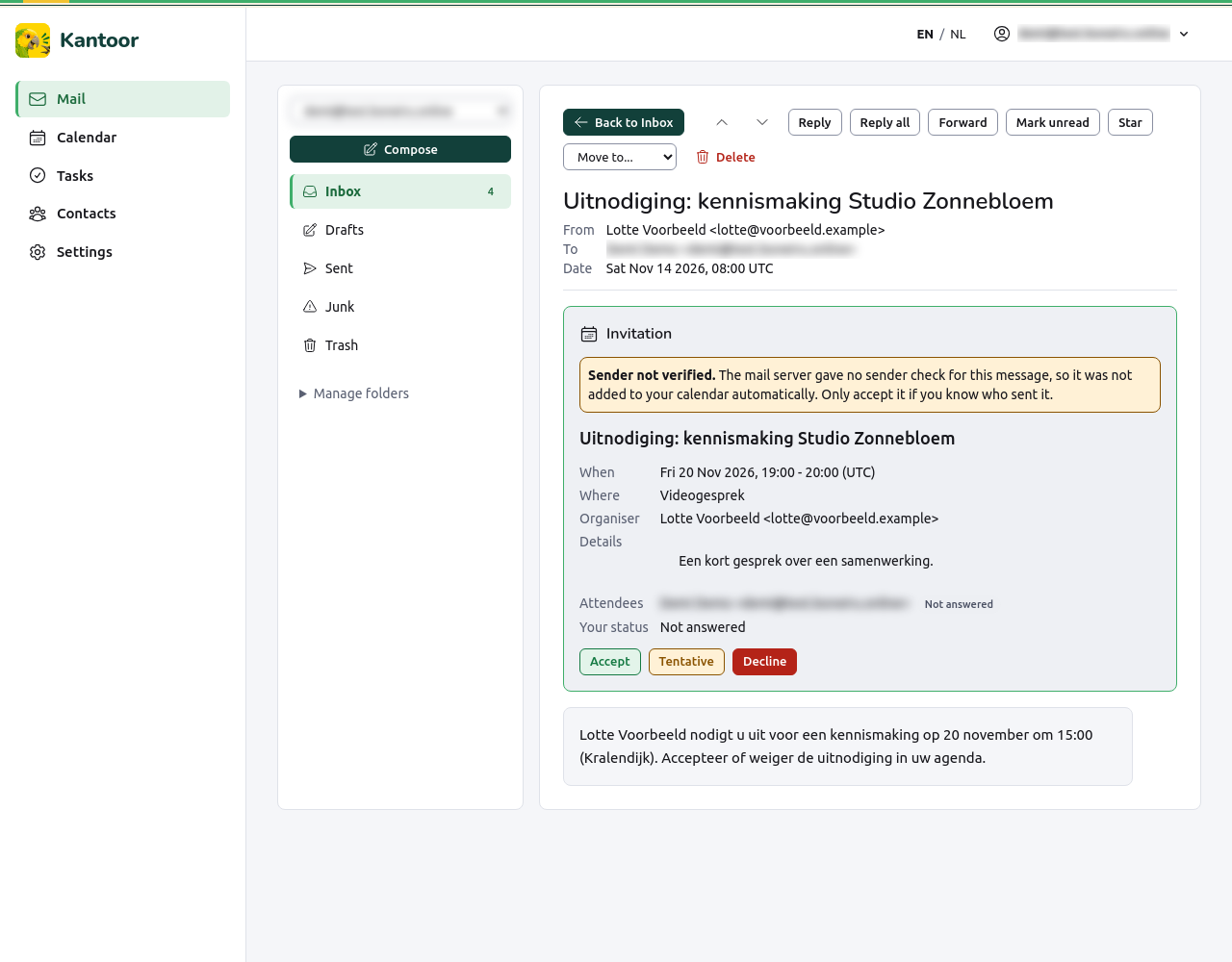
Sender not verified. When Kantoor cannot confirm that the invitation really comes from the sender’s domain, it does not add it to your calendar by itself and shows a warning. Only accept it if you know who sent it.
A card can also say The organiser cancelled this event. or This is an answer to an invitation, for information only.
Tasks on the calendar
Section titled “Tasks on the calendar”A task with a due date appears on its day, with a tick box in front of its title. Tick it to mark the task done. A task that is not done and whose day has passed is marked overdue and is also listed under today (Was due …). Show tasks in the legend switches tasks on and off. Tasks without a date are counted in the legend (“1 task without a date”), with a link to the Tasks page.
Birthdays
Section titled “Birthdays”When a contact has a birthday, the Birthdays calendar shows it every year, with the age when the year is known. It cannot be changed here: change the birthday on the contact. Choose Birthdays in the legend to hide it.
Calendars from other places
Section titled “Calendars from other places”- To follow a calendar published elsewhere (a school, a club, public holidays, the bookings of your Balie site), see Subscribed calendars.
- To see your Kantoor calendar on your phone or in Outlook, Thunderbird or Apple Calendar, see Mail and calendar apps.
Limits
Section titled “Limits”- The calendar shows lists per day; it has no grid view.
- Guests cannot be changed for one date of a repeating event on this page.