

Filters and vacation reply
KantoorSettings
Filters and the vacation reply belong to a mailbox, not to a person. Everyone who uses a shared mailbox sees and changes the same filters and reply. With more than one mailbox, choose it under Mailbox first.
Filters
Section titled “Filters”A filter sorts new mail as it arrives: it can move it to a folder, mark it read, star it or put it in the trash.
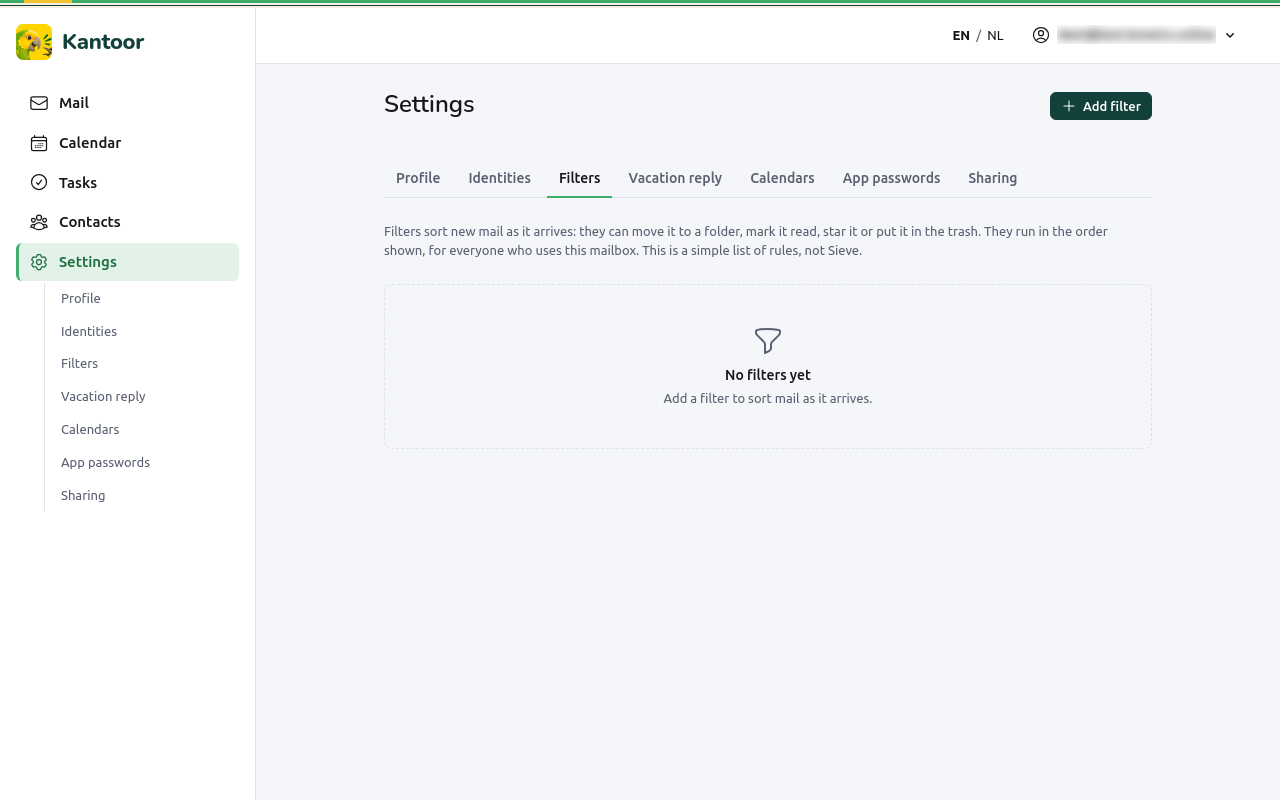
Add a filter
Section titled “Add a filter”-
Open Settings, Filters, and choose Add filter.
-
Optionally give it a Name.
-
Under Match, choose all of the conditions or any of the conditions.
-
Under When, set a condition: a Field, a Comparison and a Value.
Field Comparisons From contains, is exactly (the address or the name) To or Cc contains, is exactly Subject contains, is exactly List-Id (mailing lists) contains, is exactly Has an attachment is yes or no Upper and lower case do not matter. Add condition adds another (up to 10).
-
Under Then, choose an Action: Move to folder (choose the Folder), Mark as read, Star, Move to Trash or Stop processing. Add action adds another (up to 5).
-
Choose Save filter.
The order of filters
Section titled “The order of filters”Filters run from the top of the list down. Every filter that matches does its actions. When several filters move a message, the last one wins. Stop processing skips the filters below it. Use Move up and Move down to change the order, and Switch off to keep a filter without using it. A mailbox can have up to 50 filters.
Test a filter
Section titled “Test a filter”Under Test against a recent message, choose one of the 20 latest messages. Kantoor shows what would happen: It goes to a folder, It is marked as read., It is starred., or No filter matches this message. It stays in the inbox. The test changes nothing.
Good to know
Section titled “Good to know”- Filters only run on new mail. Moving mail yourself or sending does not run them.
- A filter whose folder no longer exists puts the mail in the inbox: a filter never loses mail.
- Filters work the same for mail you read in an app; they run on the server.
- These are simple rules, not Sieve scripts: a mail app cannot read or change them.
Vacation reply
Section titled “Vacation reply”While it is on, people who write to the mailbox get one automatic reply.
- Open Settings, Vacation reply.
- Tick Send the vacation reply.
- Optionally fill in From (optional) and Until and including (optional): the first and last day. Without dates, the reply is sent until you switch it off.
- Fill in the Subject (for example Out of office) and the Message.
- Choose after how many days the same person may get the reply again (Answer the same sender again after (days), 7 by default).
- Choose Save vacation reply.
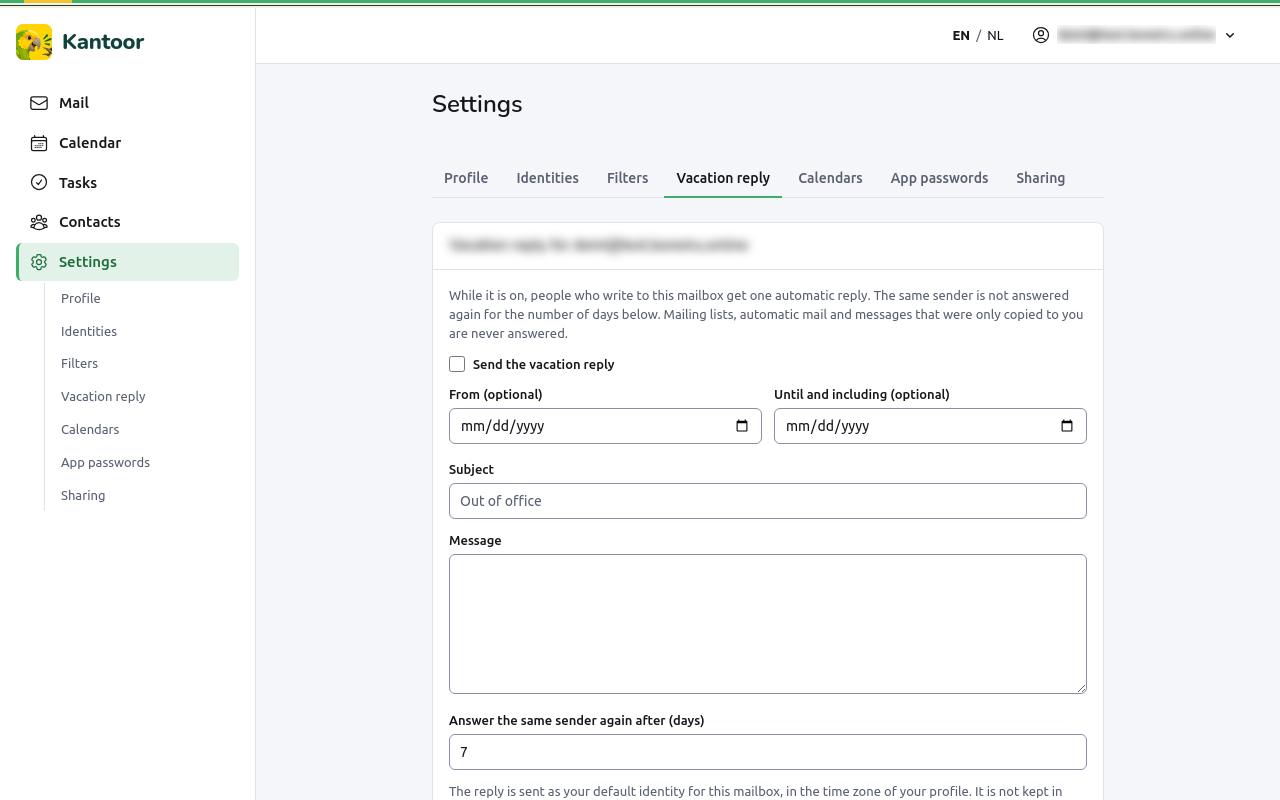
The reply is sent as your default identity for the mailbox, in the time zone of your profile. It is not kept in your Sent folder. Mailing lists, automatic mail and messages that were only copied to you (Bcc) are never answered, so the reply cannot start an endless loop.
To stop it, untick Send the vacation reply and save.