

Contacts
KantoorContacts
Open Contacts. Every user starts with an address book called Contacts. The same contacts appear in the contacts app of your phone or computer when you connect it (see Mail and calendar apps).
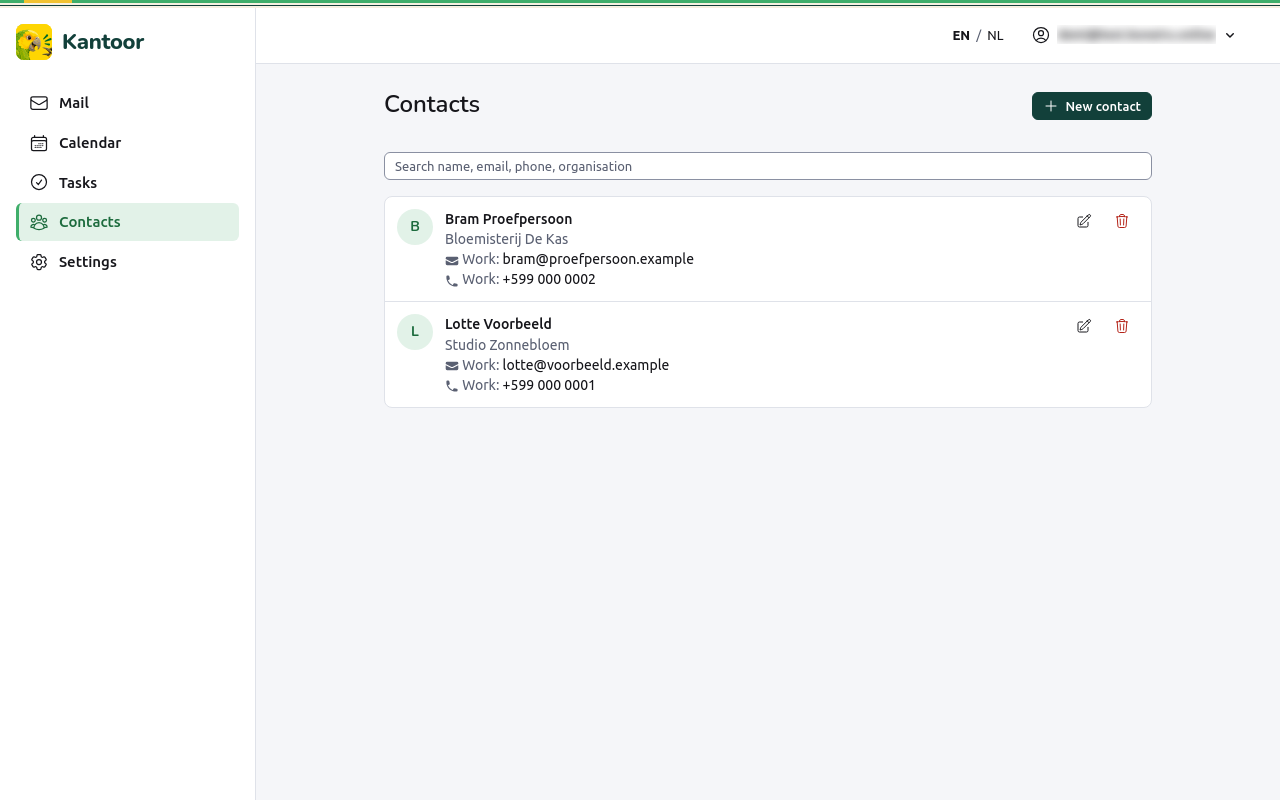
Find a contact
Section titled “Find a contact”Type in Search contacts: a name, e-mail address, phone number or organisation. With more than one address book, choose one under Address book or All address books.
Add a contact
Section titled “Add a contact”- Choose New contact.
- Fill in the Name. Everything else is optional:
- Email addresses and Phone numbers, each with a Type: Home, Work, Mobile or Other. Add an email address and Add a phone number add more;
- Postal addresses: Add a postal address, then the Type, PO box, Extended address, Street, City, Region, Postal code and Country;
- Organisation and Job title;
- Web addresses (one per line);
- Birthday and Anniversary. Tick Year not known for a date without a year;
- Notes.
- Choose Save.
A contact with a birthday appears in the Birthdays calendar.
Change or delete a contact
Section titled “Change or delete a contact”Choose the contact, then Edit to change it or Delete to remove it.
Kantoor only changes what this page shows. Anything else your phone stored on the contact, such as a photo, groups or custom labels, stays as it was. A photo is shown but cannot be changed here; change it on your phone.
Shared address books
Section titled “Shared address books”An address book someone shared with you shows the name of its owner. If it is read-only, you cannot change its contacts. To share your own, see Sharing.