

Writing mail
KantoorMail
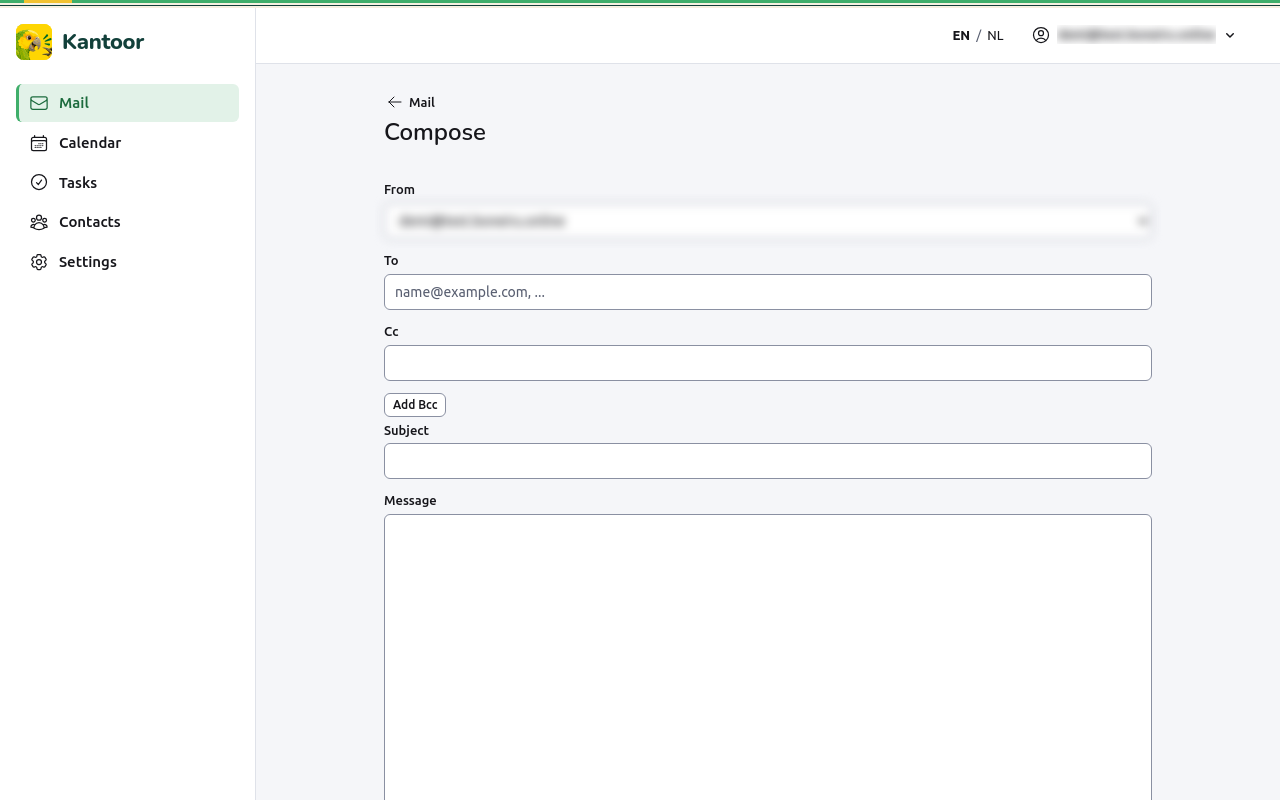
Write a new message
Section titled “Write a new message”- In Mail, choose Compose (or press
c). - Choose From when you have more than one mailbox or identity.
- Fill in To, and if needed Cc. Add Bcc shows the Bcc field for addresses the other recipients must not see.
- Fill in the Subject and the Message.
- Choose Send. Kantoor says Message sent. and keeps a copy in Sent.
If sending fails, Kantoor says The message could not be sent. Nothing was lost; try again in a moment. Your text stays on the screen.
Attachments
Section titled “Attachments”Under Attachments, choose Add files. Up to 10 files, 15 MB each. A file is uploaded when you send or save the draft. Some file types, such as programs, are refused: This file type is not allowed. Remove takes a file away.
A formatted version
Section titled “A formatted version”Tick Also send an HTML version to send a designed version of your message next to the plain text. When your identity has an HTML signature, that signature is used in the HTML version.
Reply and forward
Section titled “Reply and forward”In an open message:
- Reply answers the sender; Reply all also everyone in To and Cc;
- Forward sends the message on to someone else, with its attachments.
The original text is quoted under a line with its date and sender, in your language and time zone.
Drafts
Section titled “Drafts”Save draft keeps the message in Drafts without sending it. To carry on later, open the draft in Drafts and choose Edit draft.
Sending as another address or name
Section titled “Sending as another address or name”An identity is a name and address you send as, with a signature. When you have
identities, From lists them. The signature appears at the bottom of your
message under a -- line; you can change it before sending. Set up identities
under Settings, Identities.
You can only send from the addresses of the mailboxes you have. Kantoor has no aliases.