

Reading mail
KantoorMail
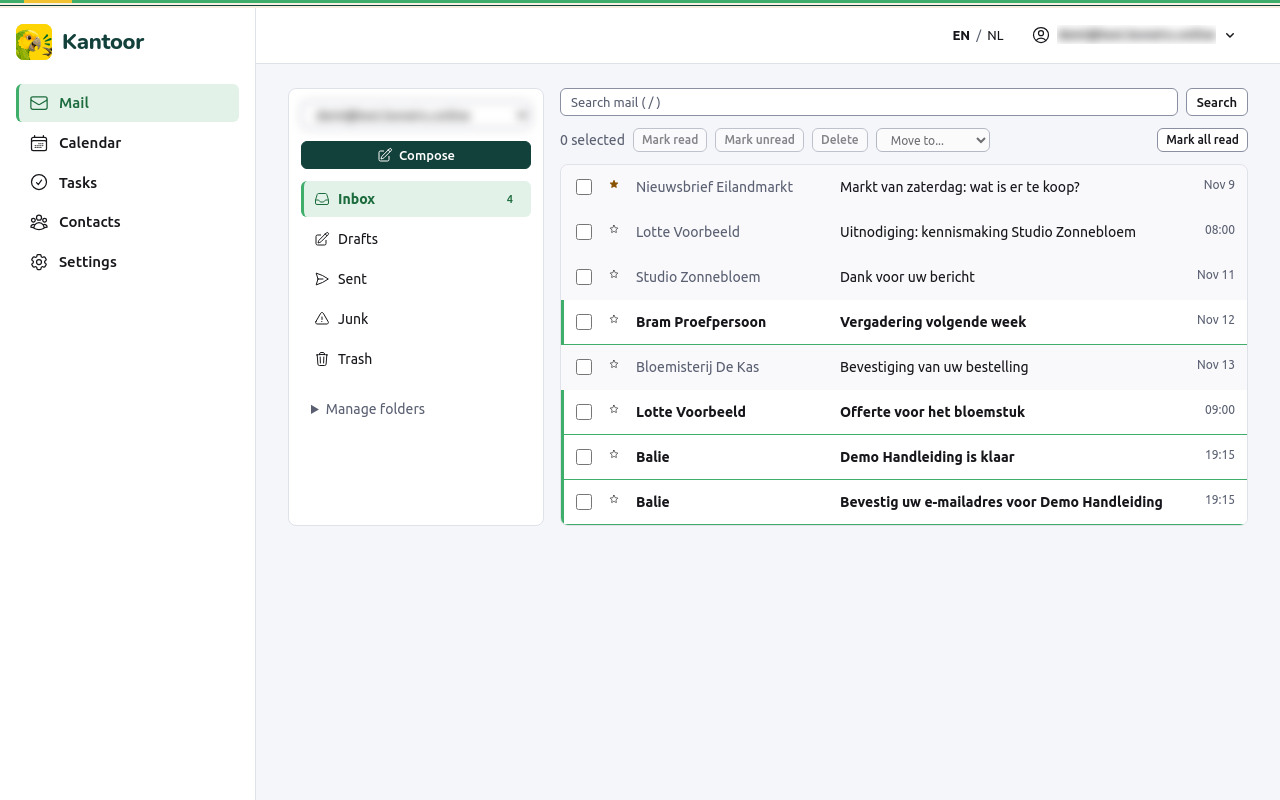
Open Mail. On the left you see your mailboxes and their folders; next to them the list of messages, newest first.
Mailboxes and folders
Section titled “Mailboxes and folders”When you have more than one mailbox, choose it under Mailbox. Each mailbox starts with the folders Inbox, Sent, Drafts, Trash and Junk. The number next to a folder is its unread mail.
Manage folders
Section titled “Manage folders”Under Manage folders at the bottom of the folder list:
- New folder: type a New folder name and choose Create. A
/in the name makes a folder inside another, for exampleCustomers/2026. - Rename: renames the folder that is open.
- Delete this folder: deletes the open folder and all the mail in it, after you confirm.
- Empty this folder (in Trash and Junk): deletes all mail in it for good, after you confirm.
The inbox and the standard folders cannot be renamed or deleted. Your mail apps see the same folders.
The message list
Section titled “The message list”The list shows 50 messages at a time; Load older messages shows more. An unread message is in bold, a starred one has a star.
To act on several messages at once, tick them. Then choose Mark read, Mark unread, Delete, or Move to… a folder. Mark all read marks the whole folder as read.
Read a message
Section titled “Read a message”Choose a message to open it.
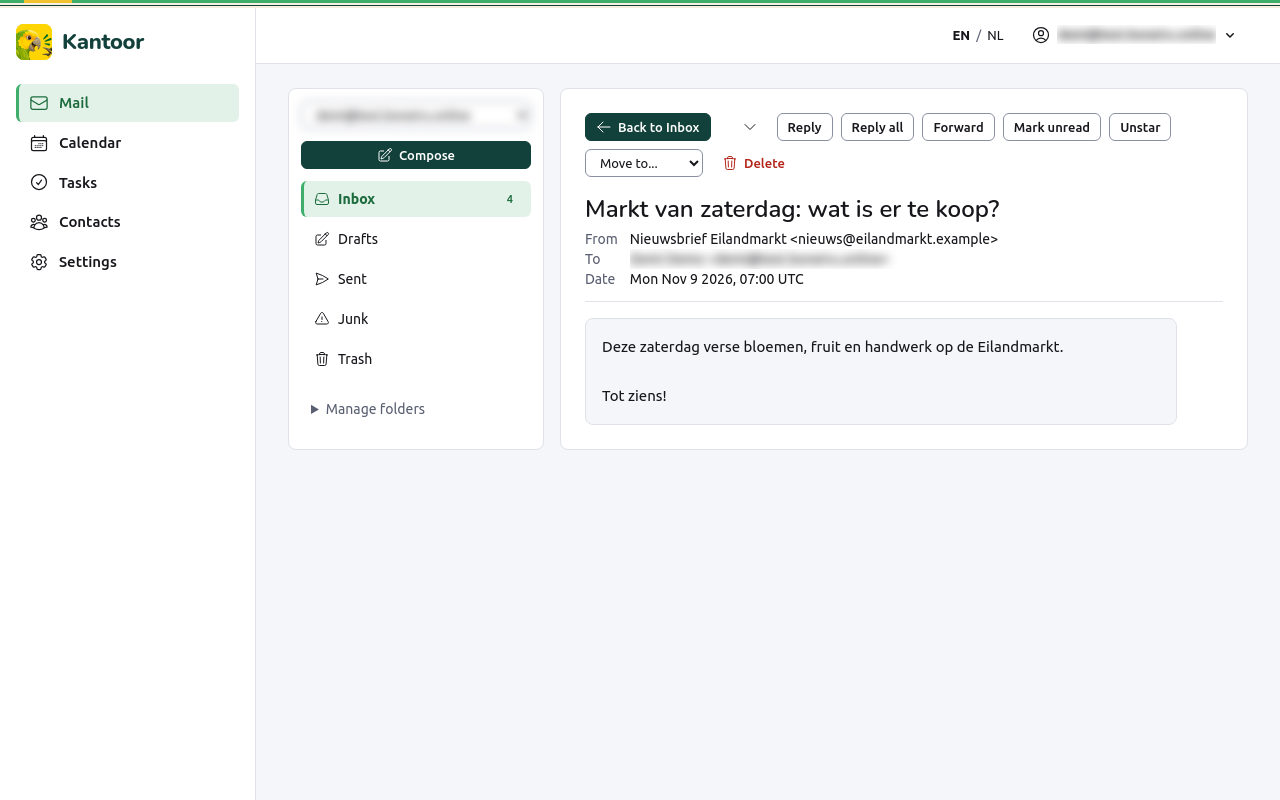
At the top are the actions: Reply, Reply all, Forward, Mark unread, Star, Move to… and Delete. For a message in Drafts there is also Edit draft.
- Formatted and Plain text switch between the designed version of the mail and the text only.
- Attachments are listed under the message with their size. Choose one to download it.
- Remote images are blocked to protect your privacy. Images that come from the internet are not loaded until you choose Load remote content, so the sender cannot see when you read the mail. Only do this for senders you trust.
- A message with an invitation shows a card to answer it: see Invitations.
Back to the folder (or Escape) returns to the list exactly where you left it. The arrows next to it open the newer or older message.
Two panes or three
Section titled “Two panes or three”By default Kantoor shows two panes: the folders, and either the list or the open message. On a wide screen you can also see the folders, the list and the message side by side: choose Three panes under Mail layout in Settings, Profile. A phone always shows the list, then the message.
Search
Section titled “Search”Type in Search this mailbox (or press /) and press Enter. Kantoor searches
the subject, the addresses and the text of the mail in the mailbox that is open.
- Put words between quotes to find them together:
"order 2026-0413". - Put a minus before a word to leave out mail with that word:
invoice -paid. orfinds either word:coffee or tea.
Search shows at most 50 results. Clear ends the search.
Delete mail
Section titled “Delete mail”Delete moves a message to Trash. Deleting in Trash removes it for good. Mail in Trash stays there until you delete it or empty the folder.
Keyboard shortcuts
Section titled “Keyboard shortcuts”| Key | Does |
|---|---|
j, k |
Next, previous message in the list (with a message open: older, newer) |
| Enter | Open the selected message |
| Escape | Back to the list |
r |
Reply |
c |
Write a new message |
# |
Delete the open or selected message |
/ |
Go to the search field |
When a mailbox is full
Section titled “When a mailbox is full”A mailbox has a size limit. Mail that arrives when it is full is kept but not shown, and the mail page says that messages are held. Delete some mail (and empty Trash) and the held mail appears, oldest first.
Dates and times
Section titled “Dates and times”Dates and times of mail are shown in the time zone of your profile. Set it under Settings, Profile; without a time zone, Kantoor shows UTC.