

Delivery
TiendaDelivery
With the Delivery module you plan the delivery orders of a day into routes, give each route to a driver, and follow the deliveries. Drivers use the driver app on their phone.
Time slots
Section titled “Time slots”Customers choose when they collect or receive an order. You decide which times are offered.
- Settings, POS Behavior holds the Store hours, the hours of pickup and delivery (or Same as store hours), Order at least this many minutes ahead, the Last order time for the same day, and Holidays and special days. See Settings.
- Delivery, Time Slot Templates turns opening windows into bookable slots: per Day of week (or a One-off date), From and Until, the Slot length (minutes) and the Max orders per slot.
- Delivery, Delivery Time Slots and Pickup Time Slots list the slots with how many are Booked and Available. + New Slot adds one by hand; Clean past removes ended slots without orders.
Drivers
Section titled “Drivers”Delivery, Drivers lists who can be given a route and sign in to the driver app. Add driver gives someone an account with the role Driver. Changing a name or role, or removing someone, is done under Settings, Users.
Plan the routes of a day
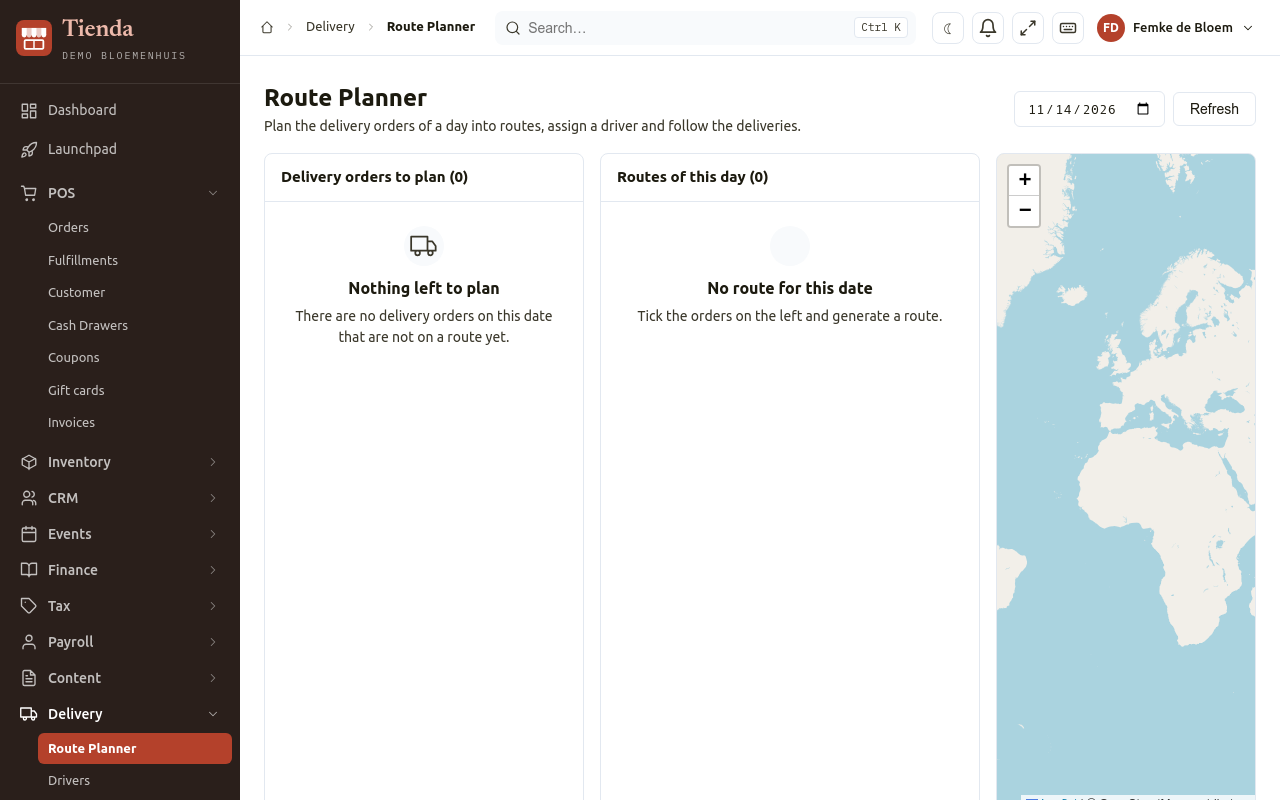
Section titled “Plan the routes of a day”- Open Delivery, Route Planner and choose the Date.
- Delivery orders to plan lists the orders to deliver that day. An order whose address could not be found on the map is marked: Fix address to correct it (see also Address issues).
- Select the orders for a route, put them in order and assign a driver.
- Release the route. Only then does the driver see it.
- During the day the planner shows the state of each stop.
Delivery, Routific Export downloads the delivery orders of a day as a CSV file to import into Routific, if you plan routes there.
The driver app
Section titled “The driver app”Drivers open https://driver.tienda.shilohbv.com on their phone and add it to the home screen (“Add to Home Screen” on iPhone, “Install app” on Android).
- They sign in with their e-mail address and a code sent to it. There is no password.
- Today shows the stops of their route in order, with the customer’s name, address, order number and a note from the shop. The first stop still to do is marked Next.
- Navigate opens the maps app with directions.
- At the door: Delivered, with the name of the recipient or a photo (one is required), optionally a signature on the screen and a note, then Confirm delivery. Or Not delivered, with the reason (nobody home, address not found, refused, no access, other), then Report as not delivered.
A stop that was not delivered can be tried again later that day (Handle again). A delivered stop is final. The driver app works in Dutch and English.