

Events and tickets
TiendaEvents and tickets
With the Events and tickets module you sell tickets in your web shop, for a workshop, a market or a concert. Tienda sends each visitor a ticket with a QR code, and at the door you check people in with a phone. The screens are under Events.
Make an event
Section titled “Make an event”- Events, New event.
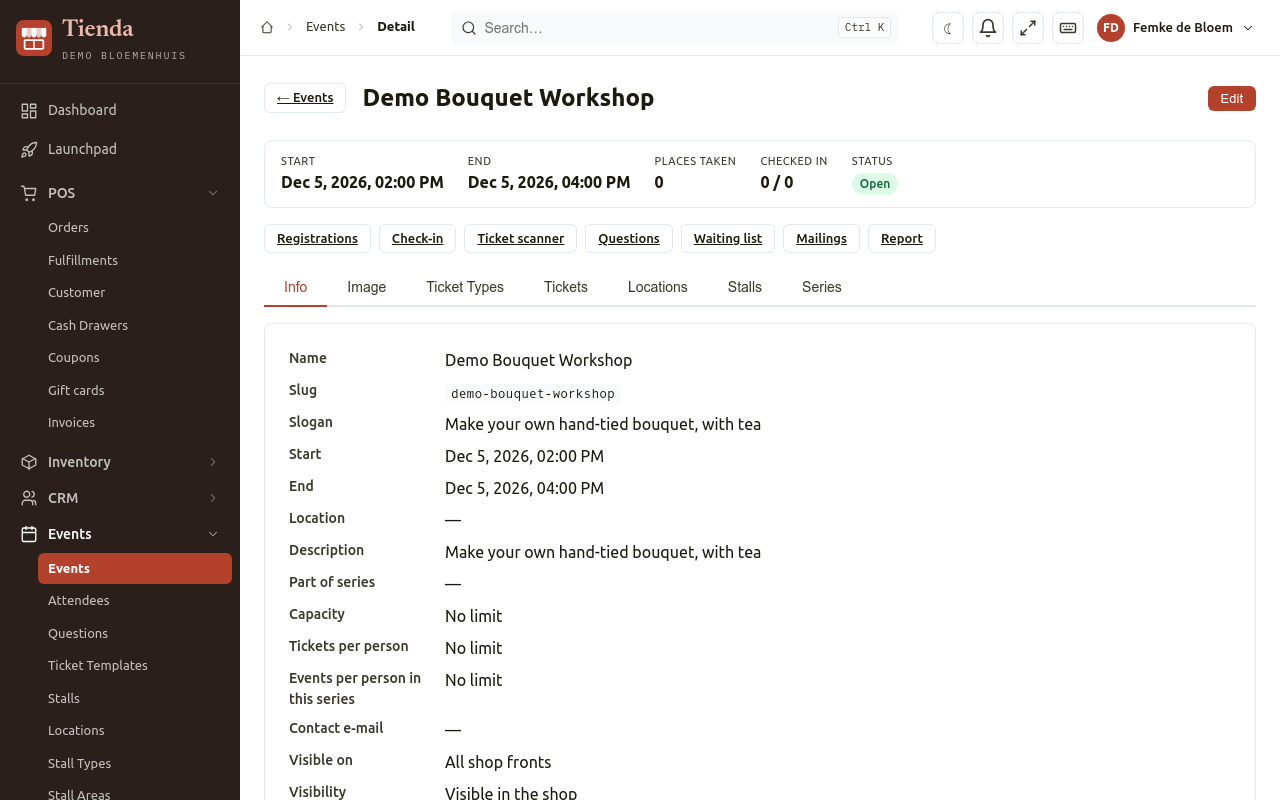
- Fill in the Name, a Slogan, Start and End, the Location, the Description, the Capacity (or No limit), Tickets per person, a Contact e-mail, and on which shop fronts it is Visible on (All shop fronts or one).
- Choose Save, then open the event.
- Under Ticket Types, choose + New Ticket Type: a Name, a Price, the Available Quantity, and optionally Sale Start and Sale End. Price 0 makes a free ticket: it is confirmed at once, without an order.
- Add an Event Image, and set Visibility so the event is Visible in the shop. A disabled event is hidden from the shop and takes no registrations; staff can still register people.
An event can be part of a Series (Add event to series), for example a course of six evenings, with a limit of Events per person in this series.
The list shows each event with its Places taken and Status: Open, Full, Ended or Disabled.
Registration questions
Section titled “Registration questions”Events, Questions is the Question library: questions you can ask at registration, for example dietary wishes (Add dietary wishes question). On an event’s Questions page, Add a question to this event and choose whether it is Required for this event. Questions of the series are asked first. The answers are in the report.
Registrations and tickets
Section titled “Registrations and tickets”An event’s Registrations page lists every ticket, with its status (Registered, Checked in, Reserved, not valid yet). There you can:
- Register attendee by hand, or Import list;
- Confirm reservations;
- Print all tickets, or Print tickets without e-mail: one PDF with the tickets of everyone who has no e-mail address, to print and hand out;
- send a ticket again, or cancel it.
Events, Attendees lists all people across events. An attendee without an e-mail address gets a printed ticket.
Ticket mails
Section titled “Ticket mails”A ticket mail with the QR code and the PDF goes out by itself the moment a ticket becomes valid (paid, or free). On an event’s Mailings page you send it again to people who did not get it, and set a Reminder with ticket a number of days before the event.
Events, Ticket templates sets the look of the ticket PDF: colours, logo and footer text. Preview PDF shows it.
Waiting list
Section titled “Waiting list”When an event is full, people can put themselves on the Waiting list. When a ticket is cancelled or a reservation runs out, the people who waited longest get an e-mail that a place is free. You can also choose Tell them a place is free or Register someone from the list yourself.
Check-in at the door
Section titled “Check-in at the door”- Open the event and choose Check-in.
- Choose Open scanner on a phone or tablet and scan the QR code on the visitor’s ticket. Or search by name, e-mail or ticket code and choose Check in. Undo reverses a check-in.
The page shows Checked in, Expected and Still to come.
Door staff do not need an account: give them the Door scanner link of the event (Copy link). Anyone with this link can scan tickets of this event without logging in, so give it only to the people at the door. New link makes a new one, for example after the event.
Report
Section titled “Report”An event’s Report shows Sold, Reserved, Checked in, Attendance, No shows, Cancelled and Revenue, per ticket type, and the answers to the questions. Download Excel (XLSX) or Download CSV. For a series it covers all its events.
Markets and stalls
Section titled “Markets and stalls”For a market, Events also has Stalls, Stall Types (with a price and colour), Stall Areas and Locations with their Location Types, each with an address and coordinates.