

Your web shop
TiendaStorefront
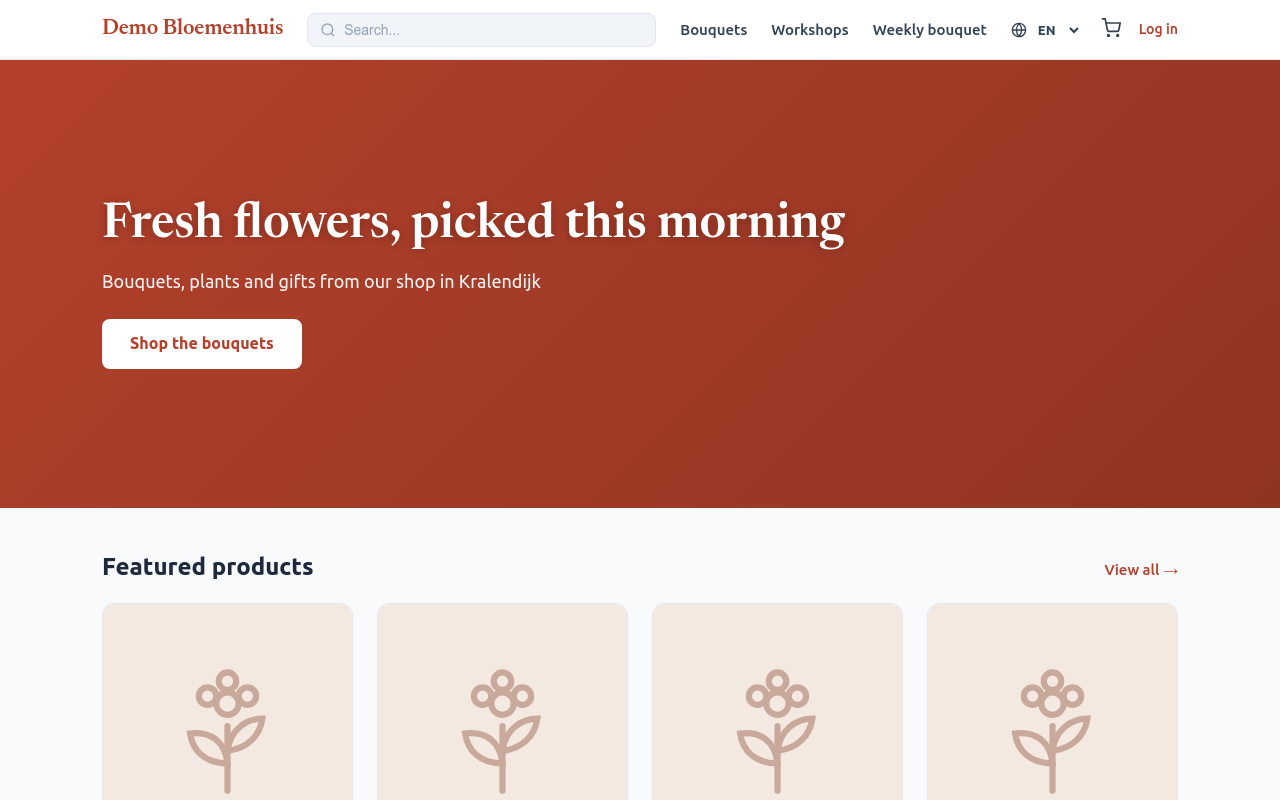
With the Storefront module your customers order online: they browse your products, put them in a cart and choose to collect or have it delivered. The web shop uses the same products, prices and stock as your counter sales.
Shop fronts
Section titled “Shop fronts”A shop front is one web shop on one address. Most shops have one; you can have several, for example one per brand.
- Open Settings, Shop Fronts, and choose New Shop Front (or Edit).
- Fill in:
- Display name and Tagline;
- Domain: the address of the shop, for example
shop.example.com; - Menu: the slug of the menu this shop shows (Content, Menus). The
standard one is
main-nav; - Colour palette: Standard shop palette, or a palette made under Settings, Appearance;
- Customers can order on this shop: untick it to close ordering, for example during a holiday, and write a Message while ordering is closed. Visitors see it instead of the order buttons;
- under Branding assets, the Logo and the Favicon (the small icon in the browser tab).
- Choose Save.
What the shop shows besides products (pages, banners, the menu) is set under Web shop content.
What your customers see
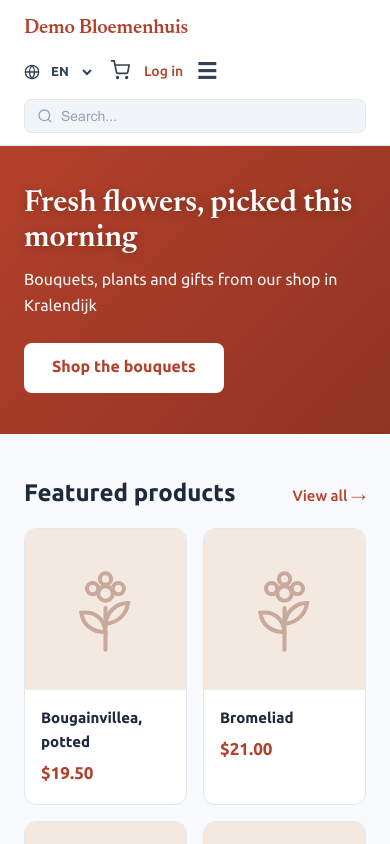
Section titled “What your customers see”Products. The home page (your own, or a standard one with your products), the product list with categories and filters, and a page per product with its images, price and stock state (In stock, Only … left, Sold out).
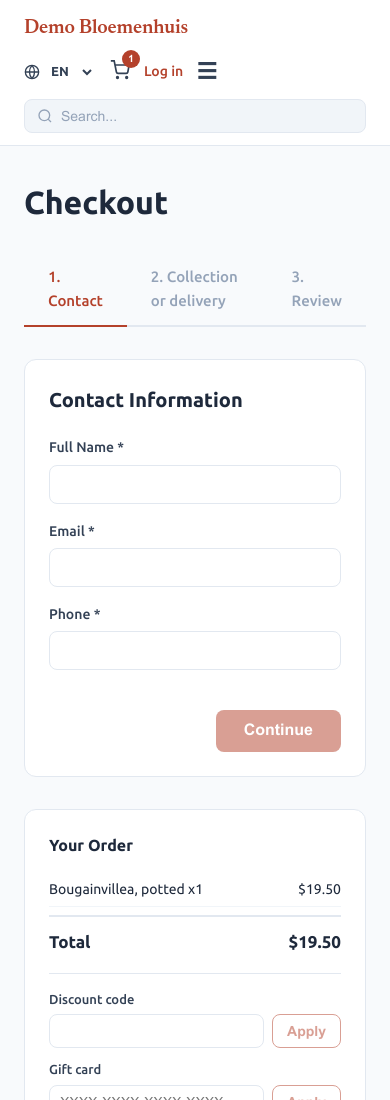
Cart and checkout.
- The customer puts products in the cart and chooses Checkout.
- Under Contact Information: name, e-mail and phone.
- Under Collection or delivery: Collect in the shop (We tell you when it is ready.) or Deliver to my address, with the address, a Phone number for the driver and Directions for the driver.
- A day and a time, when your shop offers time slots.
- Optionally a Discount code or gift card and Order Notes (optional).
- Review your order, then Place Order. The page says Order Placed! with the Order reference.
Payment. Without online payment, the checkout says You pay when you collect or receive your order. With online payment switched on (see Settings, Payment Gateways) the customer pays at the payment provider and returns to the shop.
Customer account. Customers sign in with a code sent to their e-mail (no password). In their account they see their orders, their addresses, their loyalty points and their tickets.
Events and subscriptions. With those modules, the shop has pages for your events (to buy tickets) and your subscription plans (to subscribe).
Sign-up forms have their own public link (see Sign-up forms).
Languages. The web shop is offered in several languages; a product or page that has no text in the visitor’s language shows the English text.
The new order in the back office
Section titled “The new order in the back office”A web shop order appears in POS, Orders with the channel of the web shop, and in Fulfillments when it is collected or delivered. Move it through its statuses as any order; customers get the e-mails you linked to the statuses.