

Stock and purchasing
TiendaPurchasing and stock
With the Purchasing and stock module, Tienda keeps count of what you have, where it is, and what you bought. Sales take stock off by themselves; purchases add it.
Locations
Section titled “Locations”Inventory, Locations lists the places where you keep stock. + New Location: a Name, a Kind (Warehouse, Shop Floor, Cold Room or Van), and Notes. One location is the Default location: sales take stock from there.
Inventory, Stock shows every product with what is On hand in total and Per location. Its tabs are Stock on hand, Mutations (every movement), Correction or write-off, Stock count and Settings.
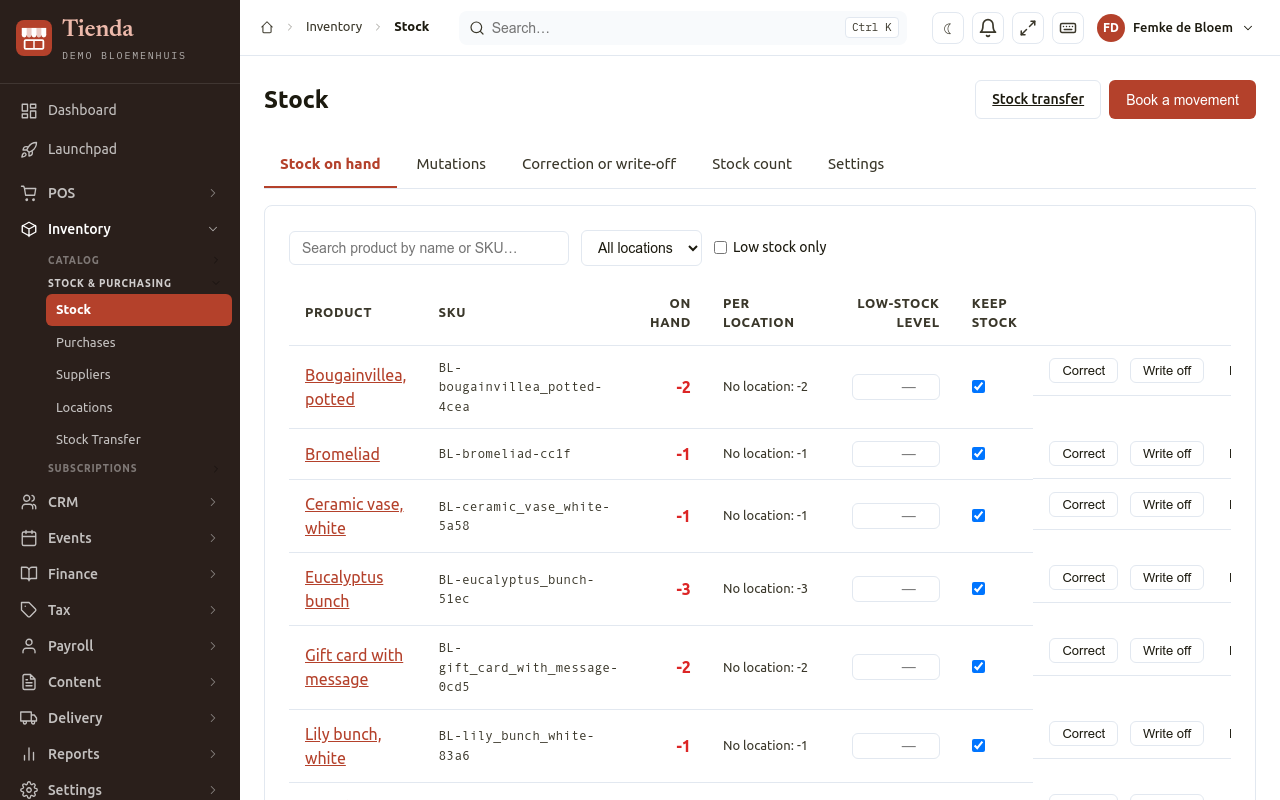
- Low stock only shows only the products at or below their Low-stock level. An empty level uses the default from Settings. The dashboard lists them too.
- Untick Keep stock for products whose stock you do not count, such as services.
Correct or write off stock
Section titled “Correct or write off stock”Choose Book a movement (or open the product’s Stock tab):
- Correct: after counting, type the difference (Quantity (negative takes stock off));
- Write off: for broken or expired goods, with Quantity to write off and Why is it written off?;
- a Stock count: type what you counted.
Each movement has a Location, a Note and is listed under History with its Reason, Date and who did it (By).
Stock transfer
Section titled “Stock transfer”Inventory, Stock Transfer moves stock from one location to another, for example from the warehouse to the shop floor:
- Search the product.
- Choose the From Location (or Unlocated (no source) when the stock comes from outside any tracked location) and the To Location.
- Type the quantity and, optionally, a note. Save.
Recent transfers lists the last ones.
Suppliers
Section titled “Suppliers”Inventory, Suppliers: + New Supplier with the Name, Contact Name, Email, Phone, Address and Notes.
Purchases
Section titled “Purchases”A purchase records what you bought from a supplier. It adds the stock and gives products their purchase price, so Tienda can work out your margin.
- Inventory, Purchases, + New Purchase.
- Choose the Supplier, the Purchase Date, and the supplier’s Invoice Number and Invoice Date.
- Under Purchase Items, + Add Item for each product: Quantity and Unit Price.
- Save.
Import a purchase from a file
Section titled “Import a purchase from a file”Import from file reads a supplier’s purchase order or invoice (PDF or image) and turns it into a purchase. It usually takes under a minute; the page updates by itself. Afterwards:
- New products were made for lines that matched no product; complete their details in the catalog;
- Unmatched lines must be added to the purchase by hand.
Imports lists every file you imported.