

Settings
TiendaSettings
Settings is for administrators of the shop. It has four sections:
| Section | Pages |
|---|---|
| Store | General, Appearance, Shop Fronts |
| Sales | Payment Gateways, Payment Methods, Order Statuses, POS Behavior, Loyalty programme, Notifications, POS sync, Printing |
| Access | Users, Roles, Profiles, Security, Modules |
| Integrations | Email, Connections, Hubs, Webhooks, API Keys, Import Data, Search Indexes |
Pages with changes that are not saved yet say Unsaved changes.
General
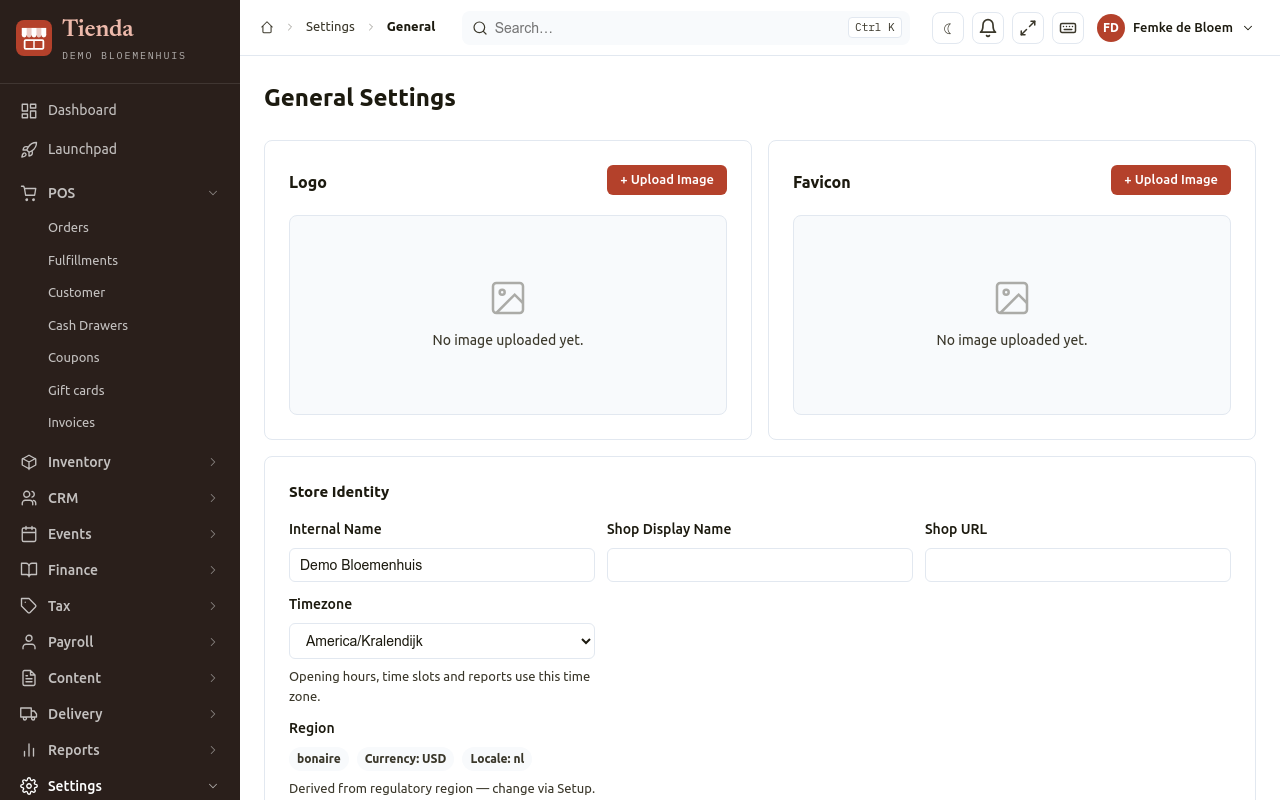
Section titled “General”| Setting | What it changes |
|---|---|
| Internal Name, Shop Display Name, Shop URL | The name you use inside Tienda, the name customers see, and your shop’s web address. |
| Timezone | Opening hours, time slots and reports use this time zone. |
| Region | The tax region, which decides the tax rules (for example Bonaire). Set when the shop is set up; ask us to change it. |
| Logo, Favicon | Your logo and the small icon in the browser tab. |
| Contact Information | Email, Phone, Address, City, WhatsApp, Instagram, Facebook: shown to customers. |
| Legal & Tax | KvK Number, BTW / VAT Number, IBAN, Legal Address: printed on receipts and invoices. |
| Show quick user switch in top bar | Puts Switch user at the top, for a computer shared at the counter. |
| Dashboard Welcome Message | Shown to everyone at the top of the dashboard. |
Appearance
Section titled “Appearance”The colours of the back office and of your web shop. Each palette has a Primary, Secondary, Success, Warning and Danger colour, Text, Muted text, Background, Banner background and Banner text. New shop palette makes another palette for a shop front; a shop uses the first shop palette unless another is chosen for it under Shop Fronts. Choose Save theme.
Under My Account, Appearance, each person chooses a light or dark theme for their own device.
Payment Gateways
Section titled “Payment Gateways”Online payment in the web shop, through PagaDirect or Sentoo. For each: Enabled, the credentials (API Token, or Merchant ID and Merchant Secret) and a Test mode (no real money). Register the webhook address the page shows in the provider’s merchant portal.
Payment Methods
Section titled “Payment Methods”The ways customers pay on the New Order form and in the shop: cash, card, on account, and so on. + New Method: a Name, a Slug, and the Behaviour:
- Uses the cash drawer (cash): the New Order form asks for the cash received, and the money is booked in the most recently opened cash drawer;
- On account (order stays unpaid): the New Order form saves the order without a payment; it is paid later;
- Accept in the web shop, with its Payment provider, or None (paid at the counter).
Default payment method is chosen first on the New Order form. Position in lists sets the order.
Order Statuses
Section titled “Order Statuses”The steps an order goes through, for example new, in progress, ready, collected. + New Status: an Internal Name, a Display Name (shown to customers), a Description, a Background Color and Text Color, its Role in the order flow and Position in lists.
Each status can send the customer an e-mail. Choose E-mail in the list, add a template, and tick Send the e-mail by itself when an order gets this status. Templates that are not sent automatically are offered to staff when they move an order to that status. Status after sending can move the order on after the e-mail. The templates themselves are under Content, Email Templates.
POS Behavior
Section titled “POS Behavior”How counter sales and the web shop handle orders:
- How customers get their order: tick what the shop offers (pickup, delivery). With nothing ticked, both are offered.
- Store hours: when the shop is open, per day, with more periods a day if you want (Add period). Shown to customers and used for a service without hours of its own. Pickup and delivery can follow the store hours (Same as store hours) or have their own.
- Order at least this many minutes ahead and Last order time for the same day.
- Holidays and special days: dates on which the normal week does not count: Closed, Special hours, or Same as store that day.
- General POS: Default Margin (%) and Max Card Message Length (the message on a gift card or with flowers).
- Delivery: Lead Hours, Radius (km), the shop’s location (Shop Latitude, Shop Longitude), and the countries addresses are looked up in.
- Pickup: Pickup Locations (one per line).
Notifications
Section titled “Notifications”Tell the staff when: which events appear under the bell at the top of the back office, and Who is told. Abandoned cart reminder: a signed-in customer who leaves products in the cart without ordering gets one reminder by e-mail, after the number of hours you set.
Modules
Section titled “Modules”The modules in your plan, with their status. To add or remove a module, contact us. When the account is suspended, the page says so: records are read-only and selling is off.
Search Indexes
Section titled “Search Indexes”Search in the back office and the shop is kept up to date by itself. When results are missing or out of date, choose Rebuild index; it runs in the background and takes a few minutes.
My Account
Section titled “My Account”Everyone, not only administrators, has My Account (choose your name at the top):
- Profile: your Name and Language (Nederlands, English; Papiamentu and Español show the interface in English);
- PIN: your 4-digit PIN to unlock the screen and to take over a shared computer with the quick user switch;
- Preferences and Appearance: how the back office looks on this device, light or dark.