

Selling at the counter
TiendaPoint of sale
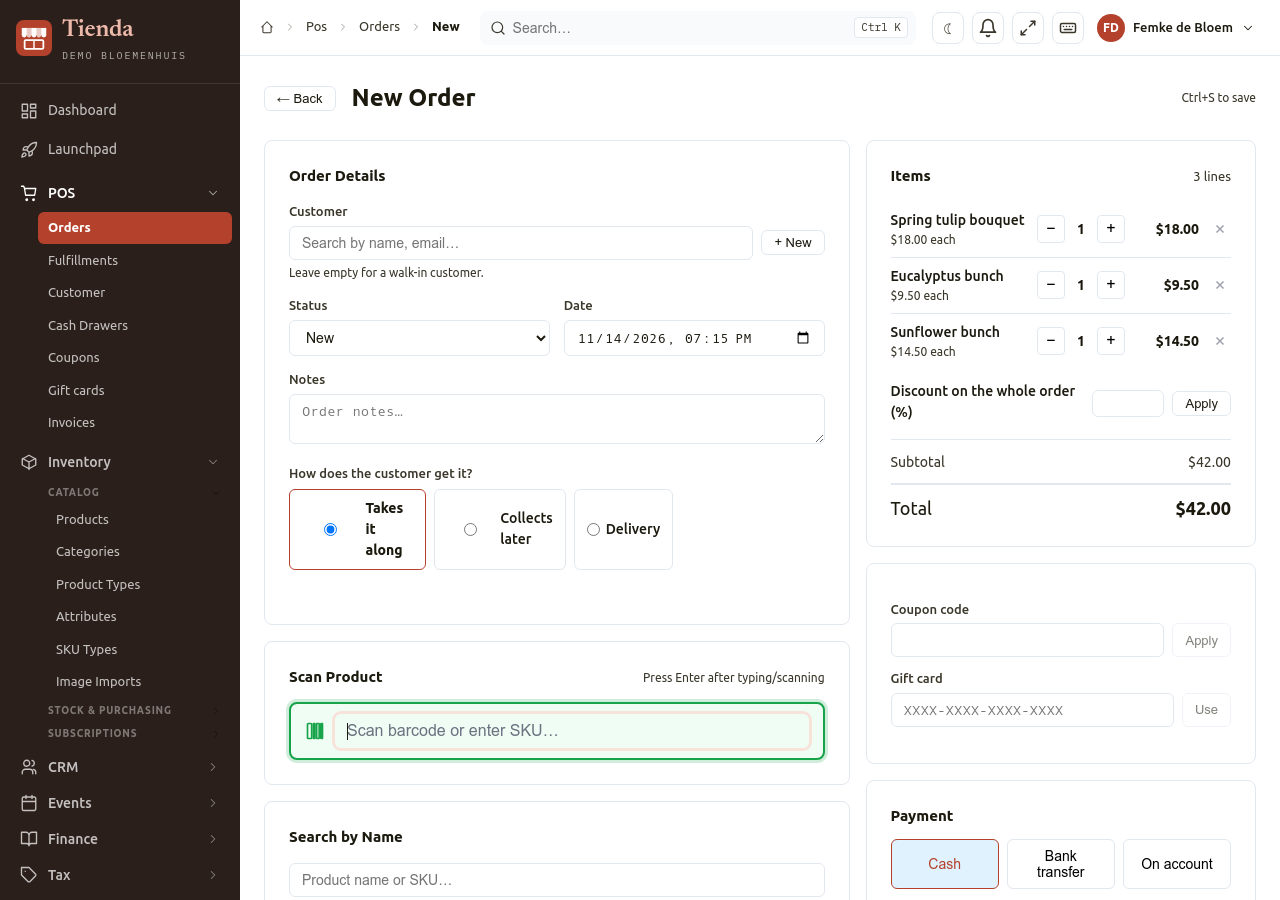
A sale at the counter is recorded with the New Order form of the back office (POS, Orders, New Order). It is a form in the browser: you add products, choose the customer and take the payment. It works in the browser of a computer, and also opens on a tablet or a phone, but it is not laid out for touch.
Record a sale
Section titled “Record a sale”- Open POS, Orders and choose New Order.
- Add products:
- under Scan Product, type the SKU or barcode and press Enter. A barcode scanner that works as a keyboard can type it for you;
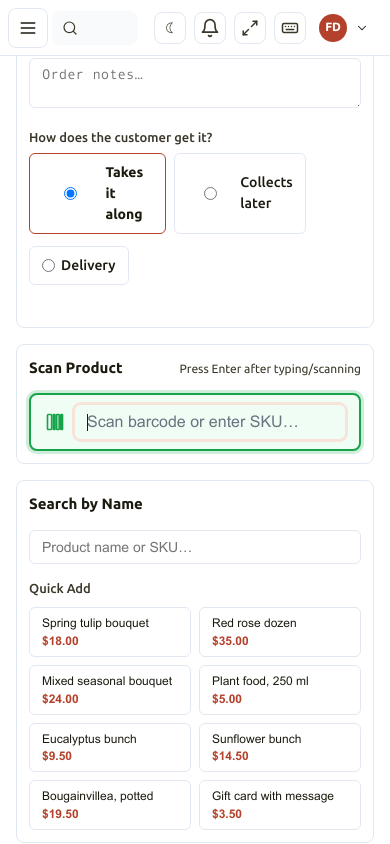
- or type a name under Search by Name and choose the product;
- or choose a product under Quick Add, which lists your best sellers once you have sales.
- Under Items, change the quantity with the minus and plus buttons. Change price, discount or note opens a line to give a Discount %, a Surcharge or a Note. Remove takes a line away. Discount on the whole order (%) gives a discount on everything.
- Under Customer, search the customer by name or e-mail, or choose New to add one. Leave empty for a walk-in customer. With a customer, loyalty points are counted (see Loyalty).
- Under How does the customer get it?, Takes it along is the usual choice at the counter. For Collects later or Delivery, see below.
- Choose Pay & Complete (see the next section).
Take the payment
Section titled “Take the payment”- Under Payment, choose the payment method, for example cash or card.
- Check the Amount. For cash, type the Cash Received: Tienda shows the Change to give back, or Short when it is not enough.
- Choose Pay & Complete. Tienda says Payment Complete and offers Print receipt.
Tienda has no link to a card terminal: take the card payment on your own terminal, then choose the card payment method here.
Paying in parts. To split the payment, for example part cash and part card, lower the amount, choose Add part payment of that amount, then pay the rest with another method. Still to pay shows what is left.
Coupon or gift card. Type a Coupon code and choose Apply, or under Gift card type the card code and choose Use. See Coupons and gift cards.
Loyalty points. A customer with points can pay part of the order with them: choose Redeem.
On account. For a customer who pays later, choose a payment method that works “on account”, then Save on account. The order is saved unpaid and stays open: Take the payment later from the order.
Save unpaid saves the order without any payment. Reset Order empties the form.
Pickup and delivery
Section titled “Pickup and delivery”Under How does the customer get it? choose:
- Collects later: choose a Day and a Time slot. Without a day the order is for today.
- Delivery: fill in the address (Street, Number, Neighbourhood, City, Postal code), a Phone for the driver and Directions for the driver, then a day and a time slot.
Which options and time slots exist is set under Settings, POS Behavior and Delivery.
Receipts
Section titled “Receipts”Print receipt after a payment opens the receipt in a new browser window; print it from there with the browser, on any printer the computer knows. You can open it again from the order (Print receipt).
With a hub and a receipt printer, Tienda can also print the receipt by itself when an order is paid (see Printing automatically).
Cash drawers
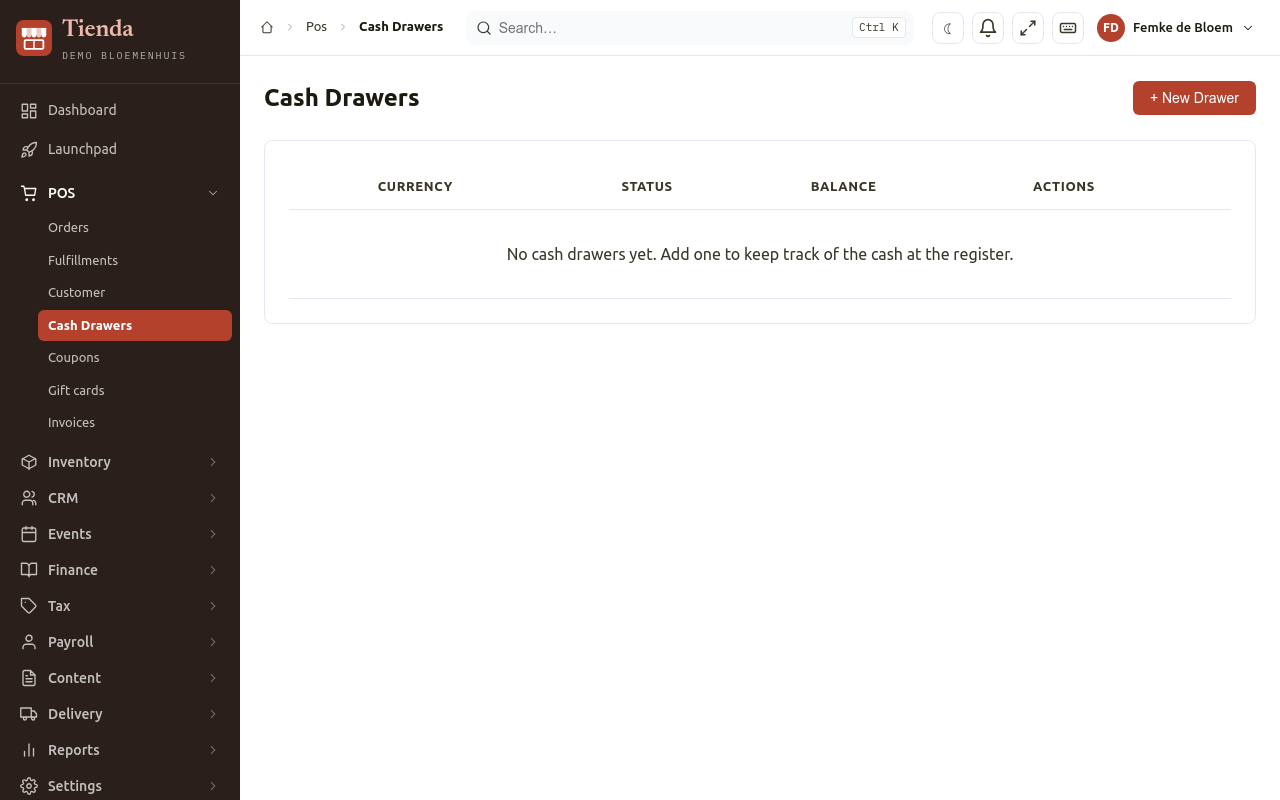
Section titled “Cash drawers”A cash drawer in Tienda is a count of the cash you keep at the counter. Tienda does not open a physical cash drawer.
- Open POS, Cash Drawers, and choose New Drawer once: give it a name and a Currency.
- At the start of the day choose Open drawer and type the Opening balance: the cash that is in the drawer at the start.
- During the day, cash payments (with a payment method that uses the cash drawer) are booked in a drawer by themselves. Book other cash with Cash in or Cash out, for example change from the bank or a deposit.
- At the end of the day choose Count drawer. Count per note and coin, or type the total, and choose Save count. Tienda shows what was Expected in drawer, what was Counted and the Difference.
- Choose Close drawer.
You can close without counting; the count can be added afterwards.
Good to know:
- The cash of a sale goes to the drawer that was opened most recently, not to the drawer of a particular counter. With two drawers open at once, all cash goes to the newest one. Keep one drawer open at a time.
- A drawer is not linked to the sales themselves; its transactions name the order number in their note.
- Tienda has no shifts yet: opening a drawer again starts its new count.
Customers
Section titled “Customers”POS, Customer lists the customers you sold to, with their name, phone, e-mail and Orders. New Customer adds one; Edit changes one. These are the same people as in CRM, Contacts.
Keyboard
Section titled “Keyboard”Press Ctrl+S to save an order. Tap Ctrl to see the shortcuts of the page, or open Keyboard shortcuts at the top.